Deploy
Design
The Design editor controls how your AI agent looks on your site: its colors, header, greeting, starter questions, launcher button, images, and font. A live preview on the right shows every change before you save.
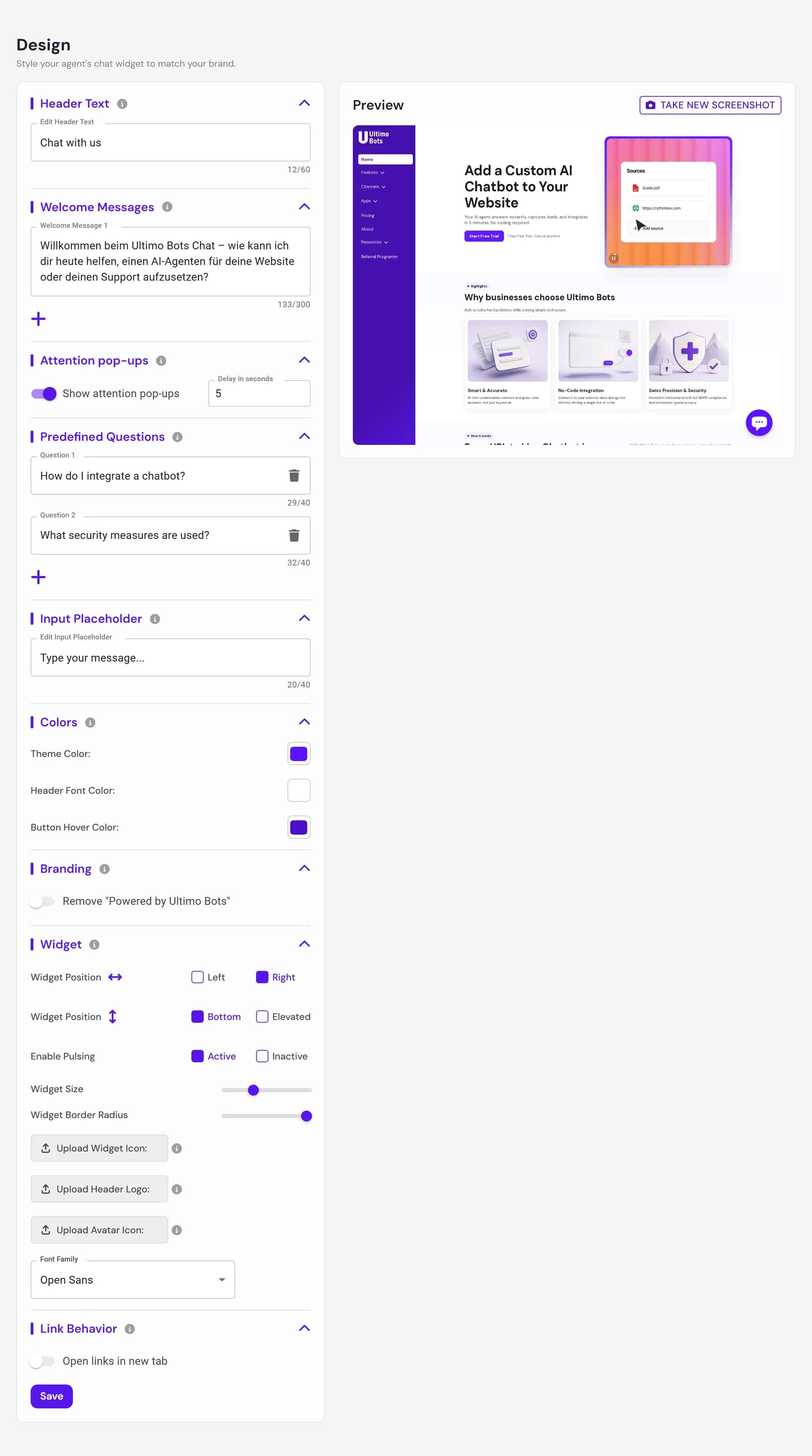
You reach the Design editor by opening an agent in the dashboard and choosing Design. The page is split in two: a column of settings grouped into collapsible sections on the left, and a live Preview of your widget on the right. Nothing goes live until you press Save, so you can experiment freely.
Messages and starter questions
The top of the editor controls the words your agent shows before a conversation begins. These are the first things a visitor reads, so keep them short and welcoming.
- Header text. The title shown at the top of the chat window, for example Chat with us. Up to 60 characters.
- Welcome messages. One or more greetings sent automatically when the chat opens. Add up to three and remove any extras. Each message can be up to 300 characters.
- Attention pop-ups. When turned on, your welcome message pops up above the launcher on its own after a delay you set in seconds. It appears only once per visit, so it draws attention without being repetitive.
- Predefined questions. Ready-made questions a visitor can click instead of typing. Add up to three, each up to 40 characters. They are a good fit for your most common requests.
- Input placeholder. The hint text inside the message box before a visitor starts typing, for example Type your message.... Up to 40 characters.
Colors
Match the widget to your brand with three color pickers. There are no preset themes or a dark mode toggle, so you choose each color yourself.
| Color | What it controls |
|---|---|
| Theme Color | Your primary brand color. Used for the chat header background, the launcher button, and the send button. |
| Header Font Color | The text color used in the header, so it stays readable on top of your theme color. |
| Button Hover Color | The color buttons change to when a visitor hovers over them. |
Branding
The Branding section controls the Remove "Powered by Ultimo Bots" toggle. Turning it on removes the Ultimo Bots line from the bottom of the chat. You can then add your own short custom branding text in its place, or leave it empty for a clean widget.
Widget placement and behavior
The Widget section controls the launcher, the small button visitors click to open the chat, and where it sits on the page.
| Setting | Options | What it does |
|---|---|---|
| Horizontal alignment | Left or Right | Which side of the screen the launcher sits on. |
| Vertical alignment | Bottom or Elevated | Whether the launcher sits at the bottom edge or is lifted up a little from the corner. |
| Enable pulsing | Enabled or Disabled | Whether the launcher gently pulses to draw attention. |
| Widget Size | Slider, 40 to 100 | The diameter of the launcher button in pixels. |
| Widget Border Radius | Slider, 0 to 50 | How rounded the launcher corners are. 50 makes it a full circle, 0 makes it a square. |
Images and font
You can replace the default visuals with your own and pick the typeface the widget uses. There are three image slots, each with an upload and crop step.
- Widget Icon. Replaces the default chat bubble on the launcher button that visitors click to open the chat.
- Header Logo. Your company logo, shown at the top of the chat window.
- Avatar Icon. A small image shown next to each reply from your agent, which makes the conversation feel more personal.
- Font Family. Choose from a list of built-in fonts, or paste your own font-family value.
After you pick an image, a cropper opens so you can frame it. You can re-open the cropper to adjust an image later, and it remembers your previous crop. There is one crop shape for all three slots.
Link behavior
The Link behavior section has a single toggle: open links in a new tab. When it is on, any link in your agent's answers opens in a new browser tab so visitors keep their place in the conversation. When it is off, links open in the same tab.
Enforce User Details
The Enforce User Details section adds a short contact form in front of the chat. When you turn on Require user details to enable chat, visitors on your website see the form instead of the message box and fill in the details you selected before they can start chatting. That way you always have their information upfront, even if they leave after a single question.
- Choose the required details. With the toggle on, a checklist appears under Select which details users must provide before start chatting. Tick the fields a visitor must fill in, for example name and email. Every ticked field is mandatory, the Start Chat button stays disabled until all of them are filled.
- Add or remove fields. The plus button creates a new field (its label is what visitors see on the form), and the trash icon deletes one after a confirmation. These fields come from the same list your agent uses for lead capture, so adding or deleting a field here changes that shared list immediately, independent of the Save button.
- Where the answers go. A submitted form is saved straight to Activity > Leads, before the visitor has sent a single message. The details are also handed to your agent, so it already knows who it is talking to, and the usual new-conversation notification fires for your team.
- Asked once per browser. After a visitor submits the form, the widget remembers it in that browser and opens the chat directly on later visits.
Live preview and saving
The Preview on the right updates as you edit, so you can see your colors, text, launcher, and images in a realistic chat window before anything goes live. The preview can show your widget on top of a captured image of your own website. Use Take new screenshot to refresh that background if your site has changed or none has been captured yet.
When you are happy, click Save to publish your changes to the live widget and hosted chat link. If you make a change and then leave without saving, the editor warns you and offers a Discard changes option so you do not lose work or publish by accident.
Next steps
Once your widget looks right, put it in front of visitors and fine-tune how it answers.