AI Studio overview
AI Studio is where you build and test your agent in one place. You tell Mo, the AI builder, what your agent should do. Mo builds it, tests it and shows you the result. Then you switch to Test and chat with your agent the way a customer would.
AI Studio is your start page for an agent. It shows what is happening with your agent at a glance, and everything you change goes through a conversation with Mo: new skills, behavior rules, knowledge, your Business Context and many platform settings. Everything in AI Studio belongs to the agent you have selected.
How to open AI Studio
- Sidebar › AI Studio. The first entry in the sidebar. AI Studio opens in Build, and every visit starts a new conversation with Mo. Your earlier conversations stay in the list on the left. If Mo is still working, AI Studio opens the conversation Mo is working in, and if Mo is waiting for your answer, that conversation stays open.
- Test Agent in the header. Opens AI Studio in Test mode for the selected agent, so you can chat with it straight away. On mobile, the button sits in the sidebar.
- Improve this answer. In the portal's test chat window, an answer can show Not the perfect answer? with an Improve this answer button. It opens AI Studio in Build with a prefilled request to Mo that contains your question and the agent's answer. Add what should change, then send it.
How the screen is laid out
At the top sits a head row with the What's new pill and the Build | Test switch. Below it, both modes use three columns:
| Column | Build | Test |
|---|---|---|
| Left | Conversations with Mo: your conversation list | Test conversations: your test chats |
| Center | Your conversation with Mo, with the input at the bottom | The test chat, where you write like a customer |
| Right | The Your agent panel: skills, behaviors, knowledge, profile and apps | The Details panel: what happened behind an answer, and the data your agent saved |
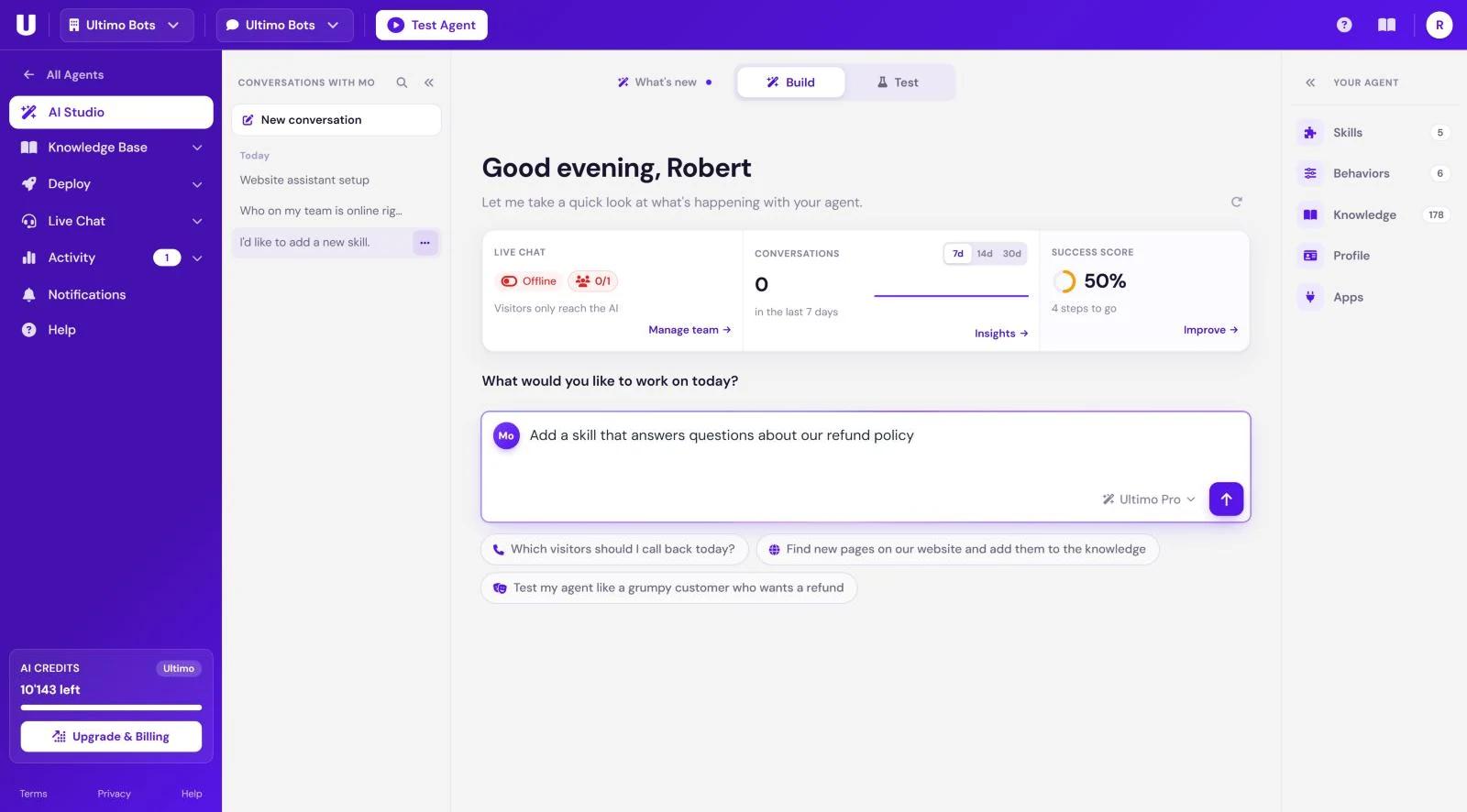
While Mo is working or waiting for your answer, a small dot appears on the Build switch, so you notice it even when you are in Test. Read more about each mode in Build with Mo and Test your agent.
The Your agent panel
The panel on the right of Build shows your agent as it is right now. It starts collapsed to a slim rail that still shows every tab with its icon, name and count. Click the rail or a tab to open it, and use the double arrow (Hide panel) to collapse it again. Your open or closed choice is remembered per agent. When Mo changes something, the panel opens by itself.
- Tabs: Skills, Behaviors, Knowledge, Profile and Apps, with counts (skills, rules, knowledge sources and connected apps).
- Changes come to the front. When Mo changes something, the tab with the change comes to the front, unless you picked a tab yourself in the last 15 seconds. Changed rows are marked new or changed for a few seconds, and a dot marks the tab.
| Tab | What you find there |
|---|---|
| Skills | What your agent does for your customers, with your plan usage, templates and Add skill. See Skills and Ready-made skills. |
| Behaviors | Your own rules and the system instructions. See Behaviors. |
| Knowledge | Mo adds websites and texts for you. The tab lists your first 15 knowledge sources with their status (for example importing or failed) and shows the rest on request. Manage knowledge opens the Knowledge Base. |
| Profile | Business Context, welcome messages and answer settings. See Profile & answer settings. |
| Apps | Connected and available apps, and API credentials. See Apps. |
The start page
Every conversation with Mo starts with Mo's welcome. It greets you by first name (good morning, afternoon or evening, in your account's time zone), says Let me take a quick look at what's happening with your agent. and then shows a compact card with your figures. Below it, Mo asks What would you like to work on today? For a brand-new agent, Mo introduces itself instead and asks you to describe your business and what your agent should do. The round arrow next to Mo's line reloads the figures.
The card: live chat, conversations, success score
| Column | What it shows | Action |
|---|---|---|
| Live chat | Your own online switch for live chat, and who else is online (for example Only you are online or Visitors only reach the AI). | Manage team opens the list of teammates who can take chats. |
| Conversations | Conversations in the last 7d, 14d or 30d, the change compared with the period before, and a curve. Point at the curve to see a single day. The note shows new leads. Your test chats are not counted. Your choice of range is remembered. | Insights opens Insights. |
| Success score | How complete your setup is, as a ring and a percentage, with the number of steps to go (or Fully set up). | Improve opens the success score window. |
The success score
The success score window shows your score as a ring, your level (from Getting started to All set) and how many of the eight steps are done. Open steps come first, most important first, each marked Essential, Important or Recommended and with a button that takes you to the fix. Completed steps are folded away below.
Help me fix it hands all open steps to Mo as one request. Mo does what it can itself and tells you what is left for you to do.
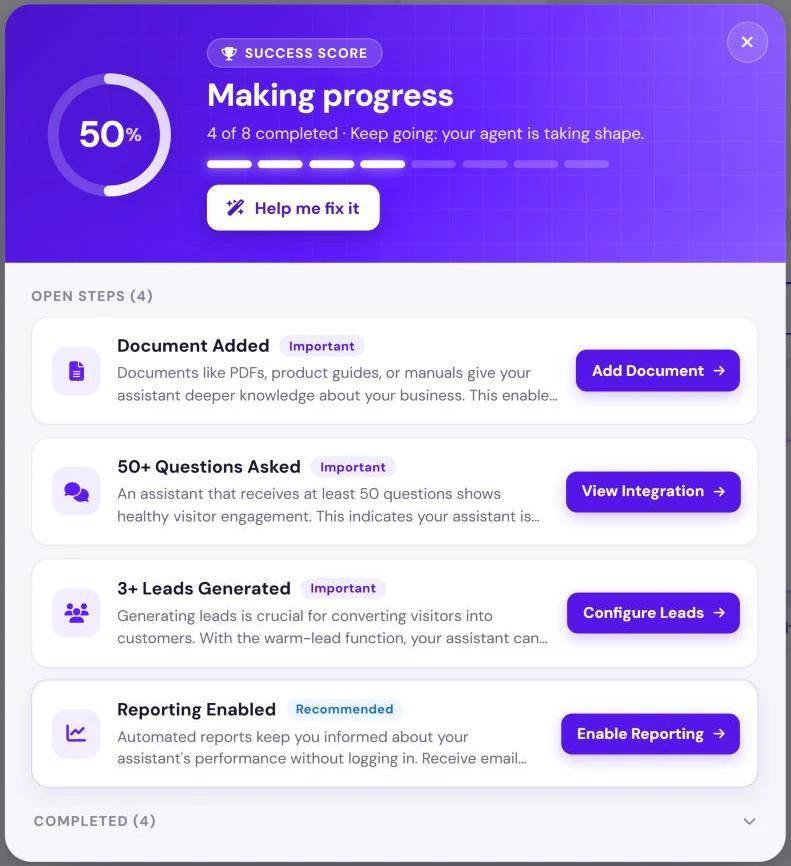
| Step | Done when | Where the button takes you |
|---|---|---|
| Behavior | At least one behavior rule is switched on. | The Behaviors tab of the Your agent panel |
| Paid plan | The agent is on a paid plan. | The upgrade dialog |
| Design | Currently always counts as done. | Deploy › Design |
| Business Context | Your Business Context is not empty. | The Profile tab of the Your agent panel |
| Documents | At least one document is uploaded. Website links do not count here. | Knowledge Base › Documents |
| 50+ questions | Your agent has received at least 50 questions. | Deploy › Channels, to put your agent in front of more visitors |
| 3+ leads | Your agent has captured at least 3 leads. | The Skills tab of the Your agent panel |
| Reports | Scheduled e-mail reports are switched on. | Activity › Reporting |
Ideas and starters
Under the input on the start page you find quick ways to get going. They depend on whether your agent is new:
- Your agent already exists: three idea buttons, picked anew on every visit, such as Test my agent like a grumpy customer who wants a refund or Find questions my agent couldn't answer and close the gaps. A click sends the idea to Mo straight away. More ideas appear one after another as the placeholder of the empty input.
- A brand-new agent: starter buttons such as Example: Winery, Example: Medical practice, Example: Online shop and Example: Trade business. A click puts a sample description into the input. Change it to fit your business, then send it.
The What's new tour
The What's new pill sits left of the Build | Test switch. It opens a short tour that highlights the main parts of AI Studio one after another: talking to Mo, the Your agent panel, Test, the start page figures and your AI credits. Steps for parts that are not on the screen right now are left out.
- The tour opens by itself once per browser session, until you choose Do not show this again. Until then, the pill shows a small dot.
- A click on the pill opens the tour at any time. The tour always shows Build.
- Use Start the tour, Next and Back, or the arrow keys. Later, the close button or
Escapeends it.
The conversation list
The list on the left works the same in both modes: in Build it holds your Conversations with Mo, in Test your Test conversations.
- New conversation starts a fresh conversation. If the open conversation is still empty, nothing happens.
- Search (the magnifier) opens a search dialog. It shows your recent conversations, and as you type it finds matches in conversation names and messages.
- Conversations are grouped by their last change: Today, Yesterday, Previous 7 days, Previous 30 days and Older.
- The … menu on a conversation offers Rename (up to 80 characters; leave the name empty and the first message becomes the title again) and Delete, after a confirmation. You cannot delete the conversation Mo is working in.
- The double arrow (Hide conversations) collapses the list to a slim rail with buttons to show it, start a new conversation and search. This is one setting for Build and Test, remembered in your browser.
On narrow screens
When AI Studio has less than about 860 pixels of width (not counting the portal sidebar), the layout changes:
- The conversation list is hidden. A picker in the chat head takes its place: open it to switch conversations, or tick several and delete them together. A button next to it starts a new conversation.
- In Build, a switch moves between Conversation and Your agent. A dot on Your agent tells you Mo changed something.
- In Test, the Details button opens the details of an answer, and Chat takes you back.
- The columns of the start page card sit side by side. Swipe through them or use the arrows.
AI credits
Answers to your visitors and Mo's work run on AI credits. You always see how many you have left in the sidebar, and during a conversation with Mo also under the input. Each answer costs the credits of your agent's answer level (Ultimo Core 1, Ultimo Pro 4, Ultimo Max 8), and Mo uses what its work really costs. Plans, credit amounts and top-ups are explained in AI credits.