Live Chat
Live inbox
The live inbox is where a real person on your team chats with visitors in real time. When a visitor wants to talk to a human, you can step into the same conversation your AI agent is handling, reply yourself, and hand it back to the agent when you are done.
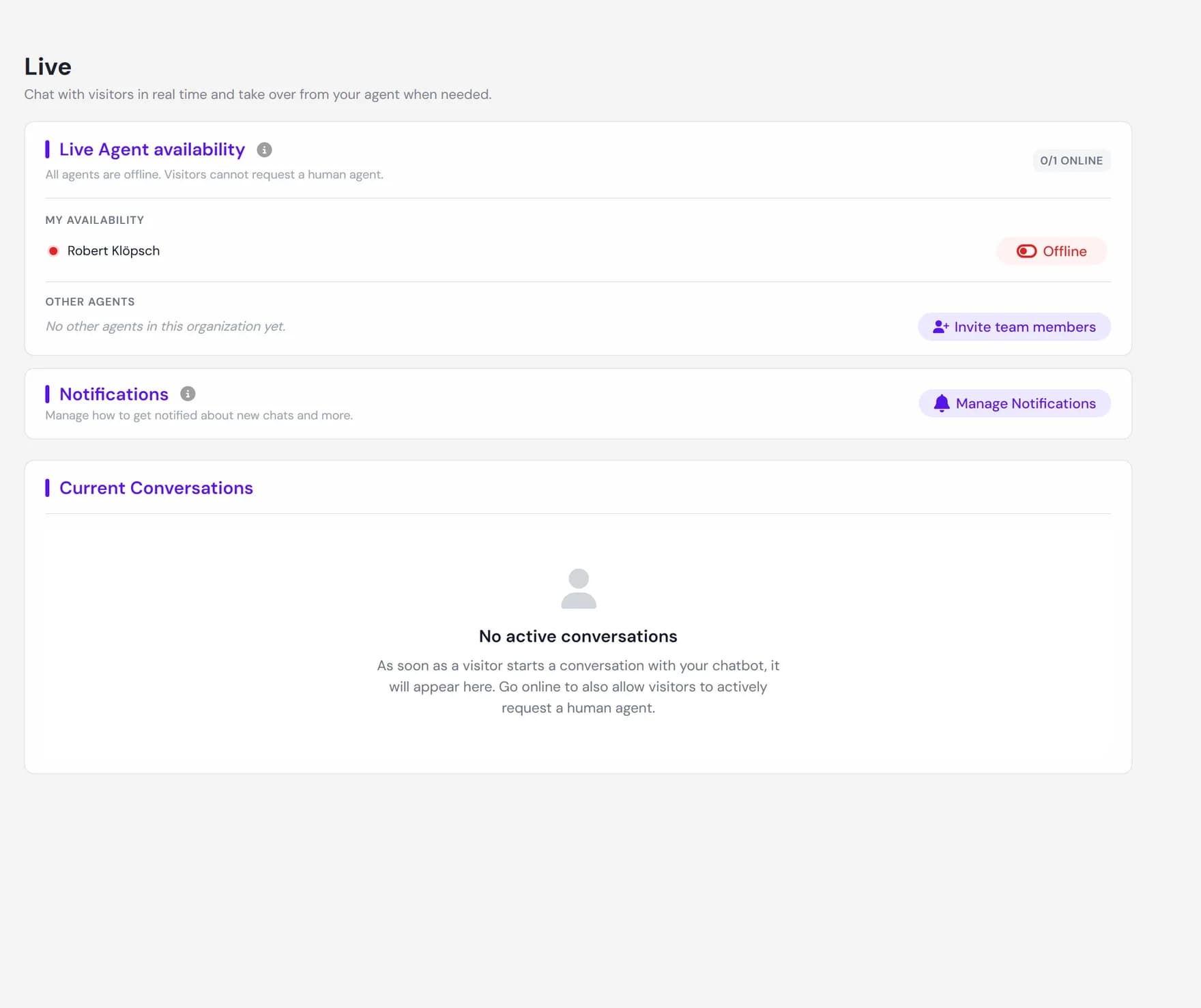
You open the live inbox from the Live tab in the dashboard. The page shows your live conversations for the agent (or agents) you have selected in the header. It updates as visitors arrive, type, and send messages, so you do not need to refresh.
What the live inbox is
Your AI agent answers visitors automatically, around the clock. The live inbox sits on top of that: it lets a human take over any of those conversations and reply in person, using the same chat window the visitor is already in. The visitor does not switch tools or start over. To them it is one continuous chat that the agent began and a person continued.
The inbox has two parts:
- An availability panel at the top, where you set yourself online or offline and see which teammates are online for the selected agent.
- A list of current conversations, each showing the visitor, their last message, a country flag, an unread count, and how long ago they were active. Selecting one opens it in a conversation view.
How a conversation reaches you
A live conversation begins the moment a visitor asks to speak with a person. In your agent this is the built-in human handover capability, which can show a Talk to a human button in the chat. There are two ways it appears:
The visitor clicks "Talk to a human"
The chat shows a request button (labelled Talk to a human by default, and renamable in settings). When the visitor taps it, their conversation is flagged as waiting for an agent and appears in your inbox with a Help requested badge.
The agent offers a human during the chat
When the agent senses the visitor wants a person, it can surface the same Talk to a human option in its reply, so the visitor can hand off without hunting for a button. The result is the same request landing in your inbox.
New chats and help requests can also raise a toast anywhere in the dashboard and an alert on the channels you have configured, so you can pick the conversation up even if you are on another page.
Taking over and handing back
From the conversation list you can open any chat to read it, then join it to start replying. Joining is what takes the conversation away from the AI agent and puts you in control.
View the conversation
Select a conversation, or use View, to open it read-only and see the full history so far. Opening a chat marks it as read for you. Viewing does not change anything for the visitor or interrupt the agent.
Join to take over
Click Join. A short dialog lets you confirm the name the visitor will see (it is pre-filled from your settings). The agent steps aside, the visitor is told a person has joined, and the message box unlocks for you. If a teammate is already in the chat, the button reads Take over instead.
Leave to hand back to the agent
When you are finished, click Leave and confirm. The visitor is told you have left, and the AI agent resumes the conversation automatically. You can rejoin later if the visitor keeps chatting.
Replying in a live chat
Once you have joined, the conversation view works like any chat. Type your message and press Enter to send (use Shift+Enter for a new line). Your messages show a delivery state so you know where they stand:
| Status | What it means |
|---|---|
| Sent | Your message has reached Ultimo Bots and is on its way to the visitor. |
| Delivered | The message arrived in the visitor's chat window. |
| Read | The visitor has seen the message. |
Two optional helpers sit next to the message box to speed up replies. Both are gated by plan, so the button opens an upgrade prompt if your current plan does not include it.
- Suggest. Drafts a reply for you from your agent's knowledge base, written to sound like a person typing in a live chat. You can edit it before sending. Suggested replies count toward your plan's message limit. Available on Boost and Ultimo.
- Translate. Translates an incoming message, or the reply you have typed, into another language. Translation is not metered. Available on Smart, Boost, and Ultimo.
Seeing who is online and visitor presence
The availability panel at the top of the inbox shows your own online status and your teammates' status for the selected agent, with a live count such as 2/3 online. Toggle Online to let visitors request you, or Offline to stop new requests. Visitors can only ask for a human while at least one person is online.
- Your status is yours to set. Only you can put yourself online or offline. The system never flips you automatically. An admin can set a teammate offline if needed, but only that teammate can bring themselves back online.
- Closing the tab does not sign you out. Because status is manual, you stay online (and the Talk to a human button stays visible to visitors) until you toggle yourself off. Set yourself offline when you finish for the day.
Inside a conversation, a presence dot tells you whether the visitor is still there. They show as online while active, as reconnecting after a short pause, and as a lost connection once they have likely closed the tab. Messages you send while they are away are delivered when they return. Each conversation also shows the visitor's country flag and an unread badge so you can prioritise at a glance.
How it connects to live chat settings
The live inbox is the operator side of things you configure elsewhere:
- Human handover is a built-in capability you turn on in Live chat settings. Switching live chat on lets the agent offer a person to a visitor who wants one. The same page controls the visitor-facing details: whether visitors see the Talk to a human button and its label, the offline message shown when no one is available, how long a request waits before returning to the agent, and the name, avatar, and color a visitor sees when you join.
- Notifications decide where you hear about new chats and help requests. Set the channels and recipients in the Notification center.
Next steps
Set up the pieces that feed the inbox and choose how you are alerted: