Workspaces & Team
Roles & permissions
Every teammate you add to a workspace has a role, and that role decides what they can see and change. Ultimo Bots has four roles: owner, admin, write, and read. This page explains exactly what each one can and cannot do.
Roles are set per workspace, not per person across the whole account. The same user can be the owner of their own personal workspace and a read-only member somewhere else. You assign a role when you invite someone, and you can change it later from the Members tab on the Team members page. You manage roles from the dashboard.
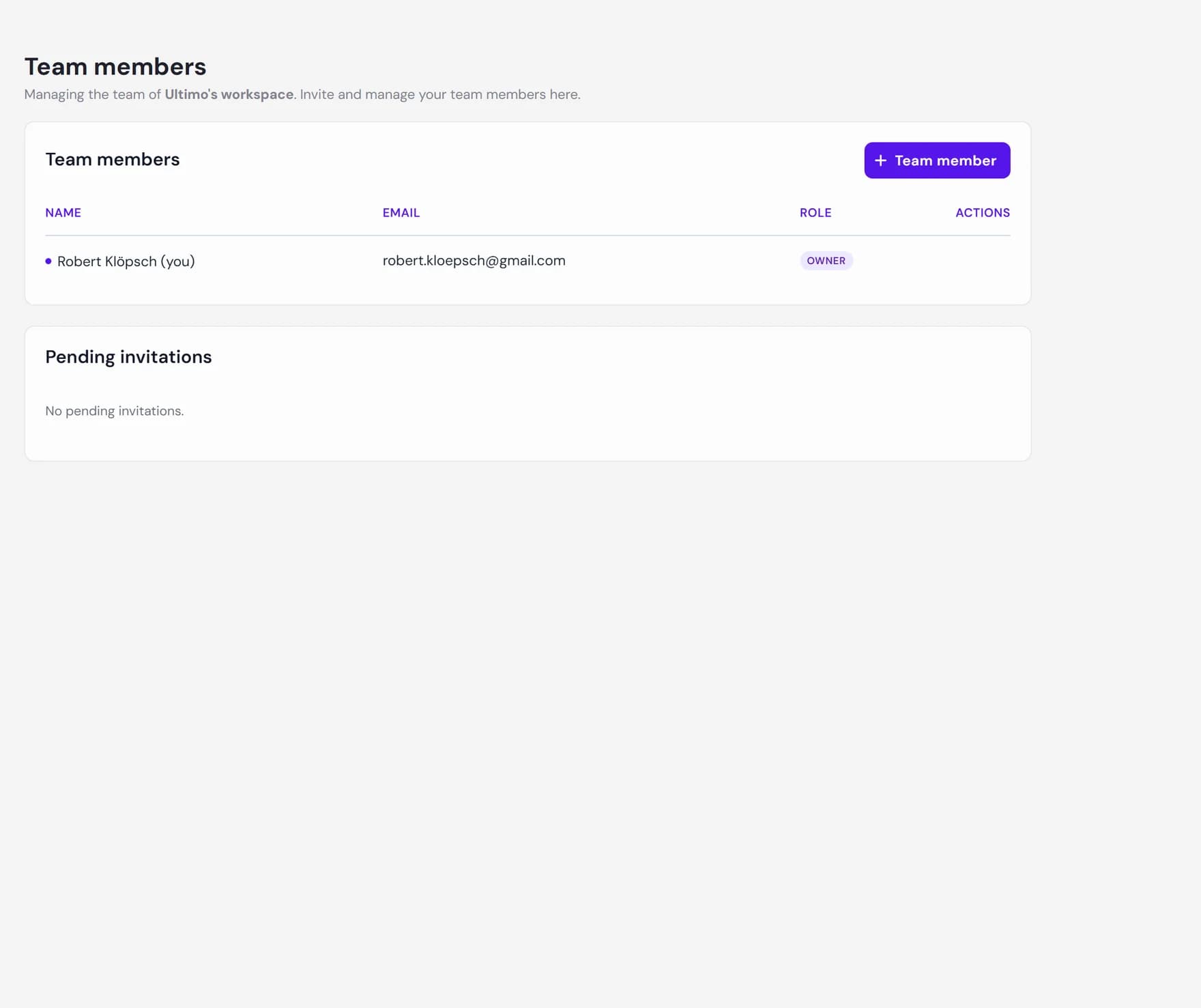
The four roles
The roles form a simple hierarchy. Each role can do everything the one below it can do, plus a little more:
- Owner. Full control of the workspace, including team management and billing. There is always at least one owner, and ownership is created when the workspace is created. Owners are never invited.
- Admin. Can view and change everything in the workspace and manage the team, but cannot delete the workspace.
- Write. Can view and change agents, knowledge, behavior, billing, and other settings, but cannot manage the team.
- Read. Can view everything in the workspace but cannot save changes. Read members can still take part in live conversations (more on that below).
What each role can do
The table below lists each role against the main things you can do in a workspace. A check means the role is allowed; a blank cell means it is not.
| Capability | Owner | Admin | Write | Read |
|---|---|---|---|---|
| View agents, analytics, leads, conversations | ||||
| Manage agents (create, edit settings, design, delete) | ||||
| Edit knowledge, behavior, skills, integrations | ||||
| Take part in live conversations (join, reply, leave) | ||||
| Manage team (invite, change roles, remove members) | ||||
| Rename the workspace | ||||
| Billing and plans | ||||
| Delete the workspace |
Read-only versus write access
The clearest line in the role system is between roles that can save changes and the one that cannot:
- Owner, admin, and write have write access. They can create and edit agents, update the knowledge base, change behavior and design, connect apps, and adjust settings.
- Read is view-only. Read members can open every screen and see the data, but Save buttons are blocked. If a read member tries to save an edit, Ultimo Bots shows a short permission message instead of saving.
There is one deliberate exception. Live chat is treated as part of helping a visitor, not as editing a setting, so every role, including read, can join a live conversation, reply, and leave it. The only live-chat action reserved for write-level roles is forcing another teammate offline.
The workspace owner has full control
The owner is the one role with no limits inside the workspace. On top of everything an admin can do, the owner is the only role that can:
- Delete the workspace.
A few rules protect a workspace from being left without an owner. A workspace always keeps at least one owner, and the last owner cannot be removed or demoted. There is no in-product way to transfer ownership or promote another member to owner today, so the person who created a workspace stays its owner. If you need ownership moved, contact the team.
Good to know
A few limits are worth knowing before you plan how to use roles:
- Roles are workspace-wide, not per agent. A write member can edit every agent in the workspace. There is no way to give someone access to one agent but not another.
- Owners are never invited. Invitations can only be sent for the admin, write, or read roles. Ownership is created with the workspace and stays with its original owner.
- There is no audit log. Role changes, invitations, and removals are not recorded in a customer-facing activity log today.
- Adding or removing a teammate never moves your agents. Agents belong to the workspace, so a teammate gains or loses access without anything being transferred or deleted.