Workspaces & Team
Workspaces
A workspace is a self-contained space that owns its own AI agents, team members, and data. You always have one to start with, and you can create more to keep separate brands or clients fully apart.
When you sign up, Ultimo Bots creates a personal workspace for you automatically, and you are its owner. By default it is named after you, such as "Alex's workspace", so you can recognise it in the switcher. Everything you do in the dashboard happens inside the workspace you currently have open: the list of agents, the knowledge you upload, your conversations and leads, your team, and your billing all belong to that workspace. Switching to a different workspace switches all of it at once.
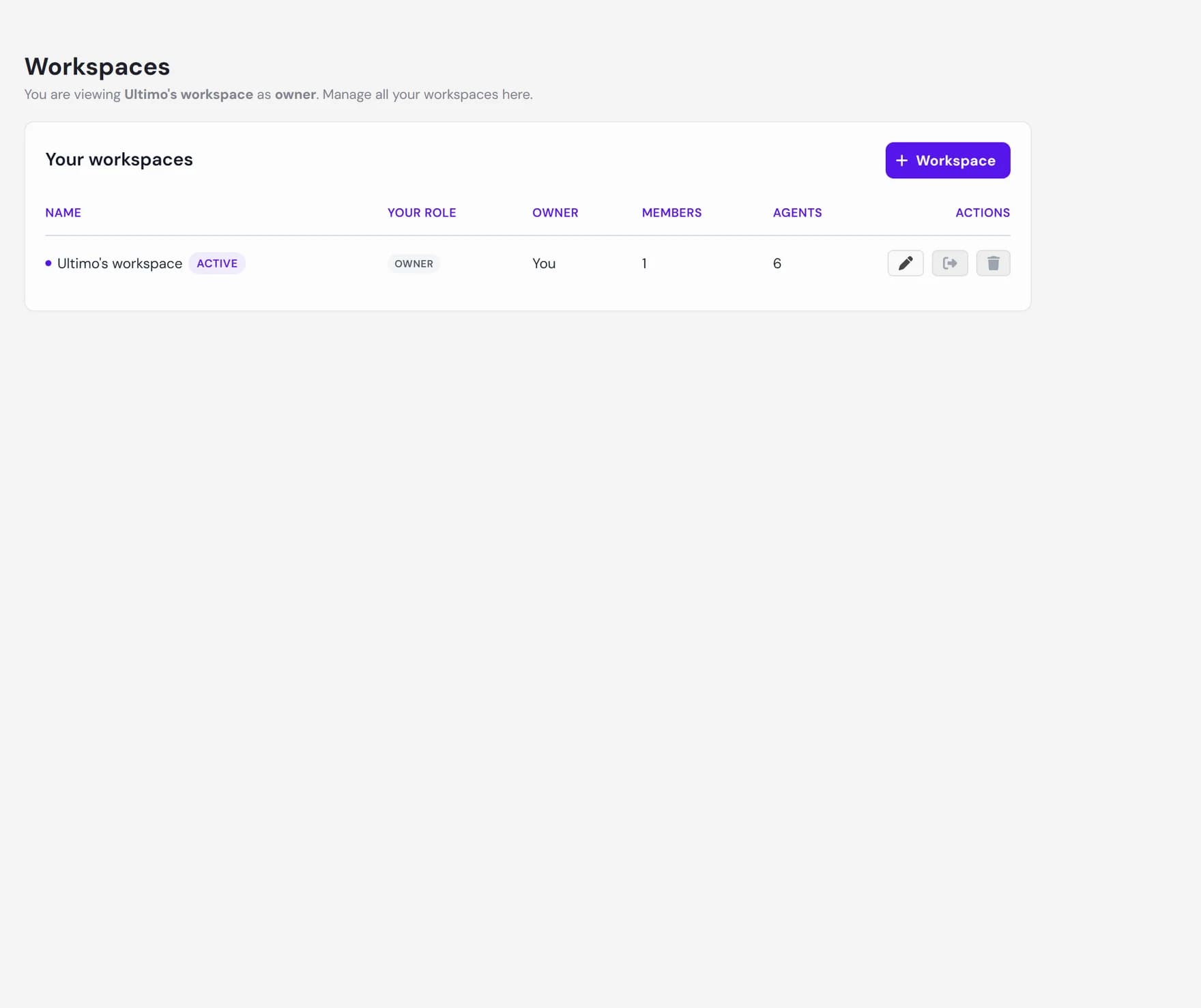
What a workspace is
Think of a workspace as a separate space that holds everything for one organisation or one brand. Each workspace owns, on its own:
- Its agents. The AI agents you create live in the workspace they were created in.
- Its knowledge and data. Website content, uploaded documents, FAQs, connected sources, conversations, and leads all belong to the workspace.
- Its team. The people invited to a workspace, and the role each one has, are set per workspace.
- Its plan and billing. Each workspace pays for its own subscription. There is no shared bill across workspaces.
Workspaces sit at the account level, next to Agents and Team members in the dashboard, because they are not tied to any single agent. They are the level above your agents.
Why you would use more than one
A single workspace is enough for most people. You would add more when you need a clean separation between groups of agents and data, for example:
- Multiple brands. Keep each brand's agents, content, and leads in their own space so nothing mixes.
- Agencies and freelancers. Give each client their own workspace, then invite that client's people into only their workspace.
- Separate teams or regions. Run independent teams without exposing one team's conversations and leads to another.
Switching the active workspace
The workspace switcher shows the workspace you are currently in. On a computer it sits in the top bar, and on a phone it sits at the top of the sidebar. Open it to see every workspace you belong to, each with a role label, and a check mark next to the active one. Click another workspace to switch to it.
When you switch, the whole dashboard reloads into the new workspace and shows that workspace's agents, conversations, leads, and settings. You stay on the same page you were on, just now in the other workspace. To rename, delete, or leave a workspace, open Manage Workspaces from the switcher, which takes you to the Workspaces page. To create a new workspace, open the same Workspaces page and use Create. You become the owner of any workspace you create.
Agents and data are isolated per workspace
Workspaces are how Ultimo Bots keeps tenants separate. Every agent, every piece of knowledge, every conversation, and every lead is attached to exactly one workspace, and a workspace only ever sees its own. This isolation is enforced on the server for every request, not just hidden in the interface.
What this means in practice:
- Inviting a teammate shares only that workspace. They get access to the agents and data in the workspace they were invited to, and nothing in your other workspaces.
- Removing a teammate never deletes an agent. The agent belongs to the workspace, so the person simply loses access while the agent stays in place.
- Your personal agents stay yours. They live in your personal workspace and are untouched by membership changes anywhere else.
Who can manage a workspace
What you can do inside a workspace depends on your role in that workspace. The roles, from most to least access, are owner, admin, write, and read. The same person can be an owner in one workspace and a read member in another.
| Role | Rename / delete workspace | Manage team | Edit agents & knowledge | Billing |
|---|---|---|---|---|
| Owner | Yes | Yes | Yes | Yes |
| Admin | Rename only | Yes | Yes | No |
| Write | No | No | Yes | No |
| Read | No | No | No (view only) | No |
Owners and admins manage the team and workspace settings. Owners alone can delete the workspace, transfer ownership, and handle billing. Each workspace always keeps at least one owner, so you cannot remove or demote the last owner. Your personal workspace is tied to your account: you cannot delete it or hand it to someone else, and you cannot leave it.
Roles apply to the whole workspace, not to one agent at a time. A write member can edit every agent in the workspace, so access is per workspace, not per agent.
Next steps
Now that you know how workspaces fit together, set up your team and roles: