Workspaces & Team
Team members
Bring colleagues into a workspace so they can work on your agents with you. You invite each person by email, choose what they are allowed to do, and they join the same workspace you sent the invitation from.
A workspace owns your agents, knowledge, conversations, and billing. Team members are people you give access to that workspace. Adding someone never hands over ownership of anything: they simply get access to the workspace's agents, and their role decides what they can change. Removing someone later never deletes or orphans an agent. The agent stays; the person just loses access.
You manage your team from the Team members page in the dashboard, under Workspaces & Team in the sidebar.
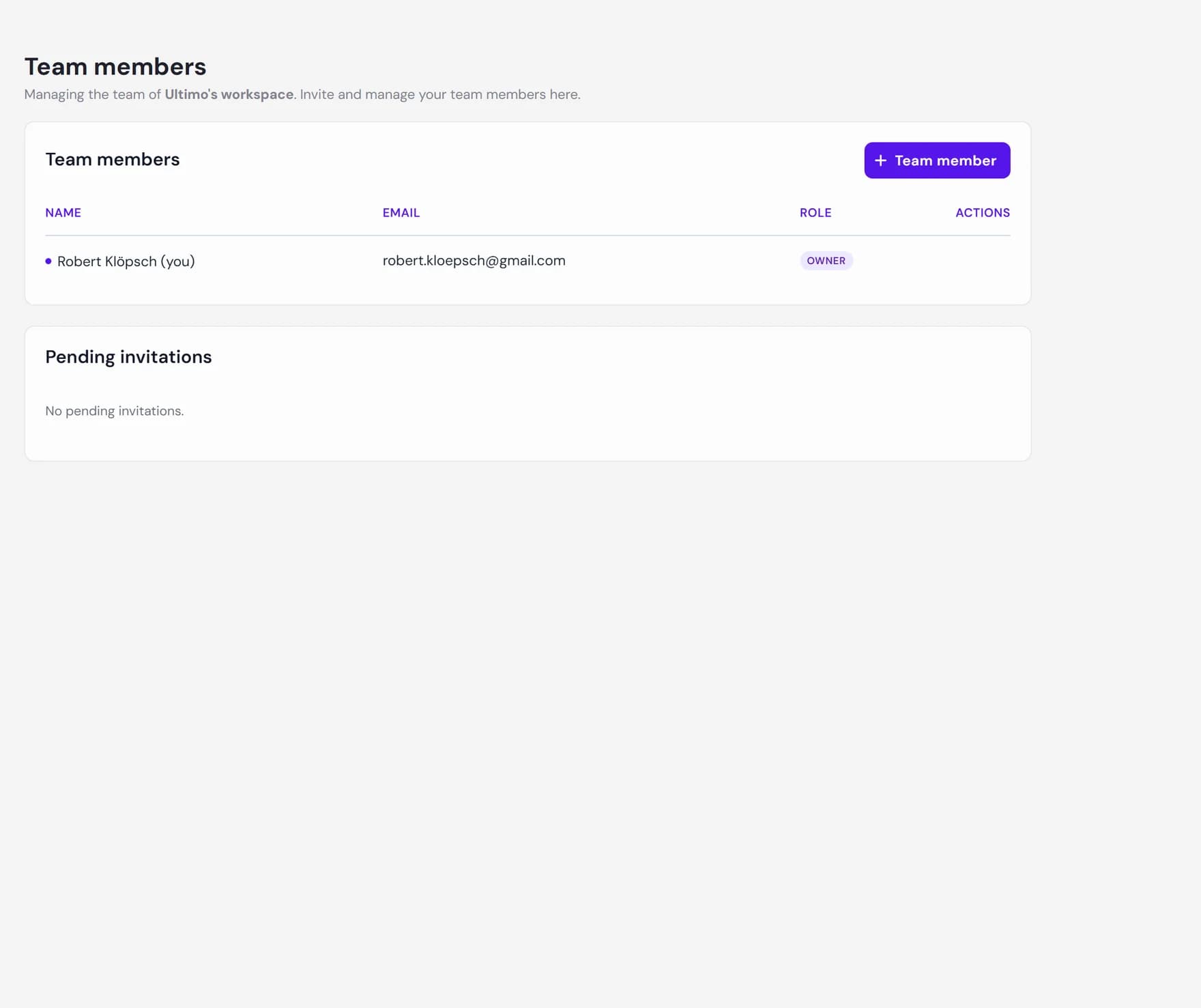
Invite a teammate by email
On the Team members page, click Team member at the top of the member list. A short form opens where you enter the person's email address and pick the role they should have.
You assign the role at the moment you invite, so the person joins with the right level of access from the start. Three roles are available when inviting:
| Role | What they can do |
|---|---|
| Read | View agents, conversations, and analytics. Cannot make changes. |
| Write | Everything in Read, plus create and edit agents, content, and settings. |
| Admin | Everything in Write, plus invite, remove, and manage team members. |
When you click Send invitation, Ultimo Bots records the pending invitation and emails the person a link to join. If that email already has an invitation waiting for this workspace, the form tells you instead of sending a duplicate.
How an invitation is sent and accepted
An invitation is a one-time link that is valid for 14 days. Here is the full path from sending the invite to the new member landing in your workspace.
You send the invitation
Enter the teammate's email, choose a role, and click Send invitation. The invitation appears in your Pending invitations list, and the person receives an email with a link to join.
They open the invitation link
The link opens a join page that shows who invited them, the workspace name, the invited email, and the access level (role) you chose. What happens next depends on whether that email already has an Ultimo Bots account.
If they already have an account
They log in to the account that matches the invited email and confirm. The workspace is added to their account, and they can switch into it from the Workspaces switcher. The email they log in with must match the invited email, otherwise the join is refused.
If they are new to Ultimo Bots
They create an account right on the join page by entering their first name, last name, and a password. The password must be at least 8 characters and include both a lowercase and an uppercase letter. Their account is created and they join your workspace in one step.
They land in your workspace
After accepting, they are taken into the workspace and appear in your Team members list with the role you assigned. The pending invitation is cleared automatically.
Pending invitations
Invitations you have sent but that have not been accepted yet appear in the Pending invitations card on the Team members page. Each row shows:
- Email the address you invited.
- Role the access level the person will get when they accept.
- Expires the date the link stops working, 14 days after it was sent.
To cancel an invitation before it is accepted, use the remove action on its row and confirm. The link stops working immediately.
Change a member's role
People's responsibilities change. To adjust what a member can do, find them in the Team members list and click the edit (pencil) action on their row. Pick a new role (Read, Write, or Admin) and save. The change takes effect right away.
A couple of rules keep a workspace safe and predictable:
- You cannot edit your own row. The edit and remove actions are hidden for the account you are signed in as.
- The owner row has no role actions. Ownership is not changed from this list. There is currently no way to promote a member to owner or hand a workspace to someone else from the dashboard. The original owner stays the owner.
Remove a member
To take someone out of a workspace, click the remove (trash) action on their row in the Team members list and confirm. They lose access to this workspace immediately. Any agents, knowledge, and conversations stay exactly where they are; only the person's access is removed.
If the person was handling live chat in this workspace, removing them also clears their online presence so visitors are no longer offered a handoff to someone who can no longer take the conversation.
Members belong to one workspace
Everything on this page applies to the workspace you are currently viewing. You choose the active workspace from the switcher in the sidebar, and the member list, roles, and pending invitations always reflect that one workspace.
That means an invitation joins a person to the specific workspace you sent it from, and a member's role applies only within that workspace. The same person can belong to several workspaces with a different role in each. If you want to give someone access to another workspace, switch to it first, then invite them there too.
Next steps
Keep setting up how your team works together: