Agents
Test your agent
Before you put your agent in front of visitors, chat with it yourself. The built-in Playground lets you ask real questions and see exactly how your agent answers, so you can fix gaps before they reach a customer and keep checking after you go live.
Testing is the fastest way to find out what your agent does and does not know. You ask the kinds of questions your visitors ask, read the answers, and improve the agent wherever it gets something wrong. You can test as often as you like, both while you are setting the agent up and later, whenever you change its knowledge or behavior.
Where to test your agent
There are two ways into the same chat experience, called the Playground. Both run the live agent for the workspace you have selected, with its current knowledge, design, and behavior.
- The Playground on the Overview page. When you open an agent, the Overview is the first screen you see, and the Playground sits right there on the left so you can chat the moment your agent is ready. It stays open while you watch usage and activity update on the right.
- The Test Agent button in the top bar. Wherever you are working in the dashboard (knowledge, design, behavior, and so on), the Test Agent button in the header opens the same Playground in a window over your current page. It is the quickest way to try a change without leaving the screen you are on.
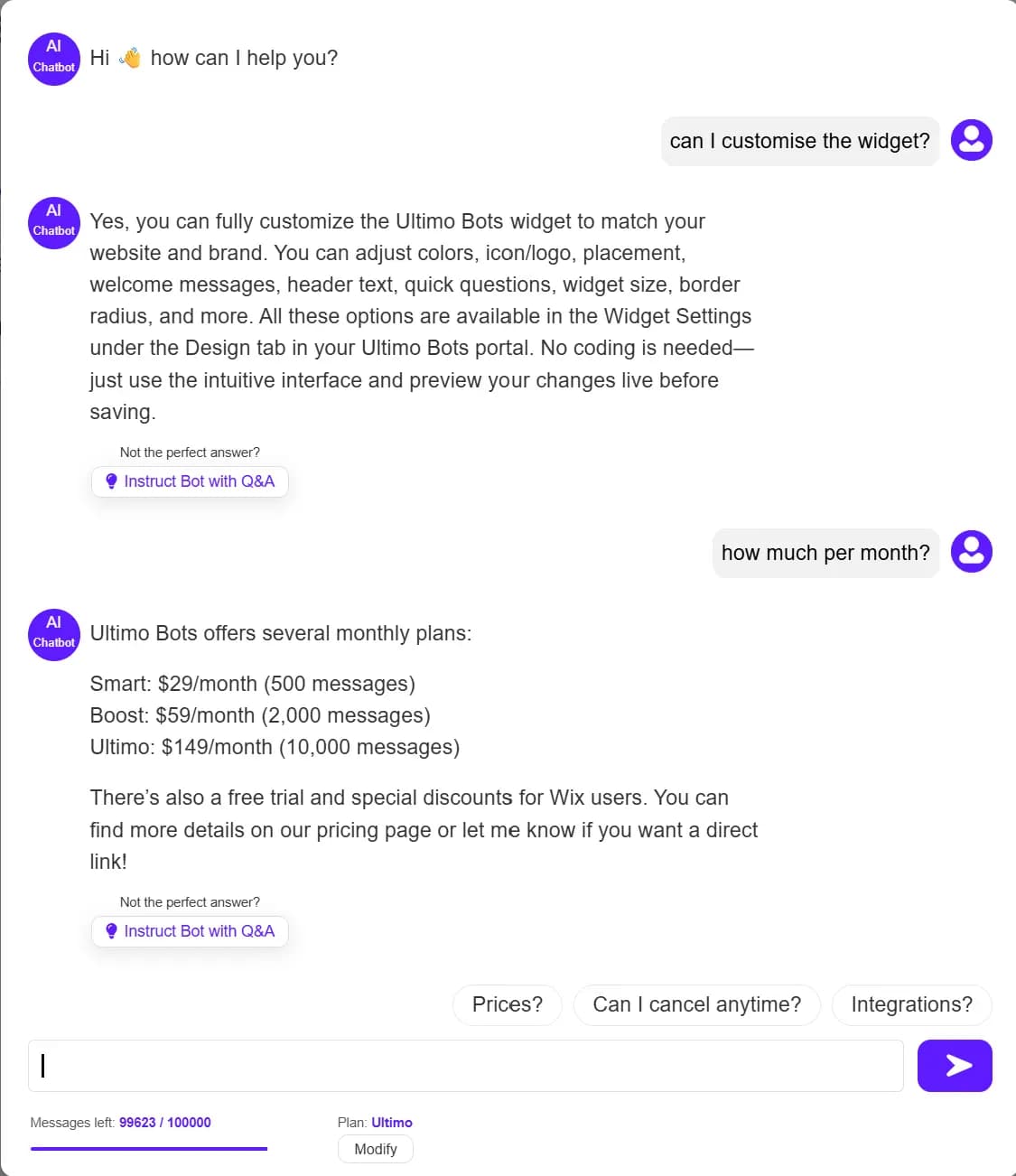
Try the suggested questions
When the Playground opens it greets you with your agent welcome message, the same one your visitors see. Below the conversation you will find a row of suggested questions. These are the starter prompts generated for your agent (and which you can edit on the design screen), so they are a natural first thing to try.
Click a suggested question
Selecting one sends it as if you had typed it. This is the fastest way to confirm the questions you put in front of visitors actually get good answers.
Type your own questions
Use the message box to ask anything a real visitor might, including the awkward phrasings. Press
Enterto send, orShift+Enterfor a new line. The answer streams in word by word, just like on your live site.Start over when you want a clean run
Use Clear (the reset control at the top of the Playground) to return to the welcome message and test a fresh conversation. Clearing the chat does not undo anything you already sent.
Check answers against your knowledge
The point of testing is not just to see that the agent replies, but to judge whether each reply is correct. As you read each answer, ask yourself:
- Is it accurate? Does it match what is really on your website, in your documents, and in your FAQs? Watch for confident answers that are subtly wrong or out of date.
- Is it complete? Did it answer the whole question, or skip part of it? A thin answer usually means the relevant detail is not in the knowledge yet.
- Is it on brand? Does the tone, length, and language fit how you want your agent to sound? Tone and rules are controlled in behavior.
- Does it stay on topic? A good agent declines to invent answers about things it has no knowledge of, rather than guessing.
Test conversations count toward your usage
Because test messages are real, the dashboard updates live as you chat. The Usage tile and the Activity chart on the Overview page tick up with each answer, and the responses counter in the sidebar follows along. This is handy for seeing your usage move, but it also means a long testing session draws down the same allowance your visitors use.
- Test deliberately. A handful of well-chosen questions tells you far more than dozens of throwaway ones, and it spares your allowance.
- Clearing the chat does not refund anything. The messages were genuinely sent, so they stay counted even after you reset the conversation.
- When you hit your limit, testing stops too. If you reach your monthly cap, the Playground asks you to upgrade before you can keep chatting, exactly as it would for a visitor.
You can see how many responses are left for the cycle on the Overview page, and review what each plan includes on billing.
Fix a wrong answer and test again
When an answer is not right, the fix depends on what went wrong. Make one change, then ask the same question again in the Playground to confirm it is better. Iterating in small loops is the quickest path to an agent you trust.
| What went wrong | What to do |
|---|---|
| The answer is missing a fact, or says it does not know | Add the missing information to your knowledge: a website page, a document, or a hand-written FAQ. |
| The facts are right but the wording is off, or one answer is just not good enough | Use Instruct Bot with Q&A beneath the reply (shown under every answer, framed Not the perfect answer?) to save a better question-and-answer pair, then retest. |
| The tone, length, or rules are wrong across many answers | Adjust the agent behavior and business context, which shape every reply. |
| Information is out of date | Update or re-import the source in knowledge, then ask again. |
How testing differs from the live widget
The Playground runs the same agent, the same knowledge, and the same answer engine as your live site, so what you see is a faithful preview. A few things behave differently on purpose, because the Playground is a private preview for you and not a real visitor session:
- Talk to a human does not start a real handoff. If you have live chat turned on, the Playground shows the Talk to a human button so you can preview where it sits, but clicking it opens a short explanation instead of paging your team. To try a genuine handoff, open your agent public chat link or your live site. See live chat settings.
- Your branding and placement are not shown here. The Playground is a plain preview focused on the conversation. To check colours, the launcher, and how the agent looks in place, use the design preview and your live site.
- It is tied to your selected agent and workspace. Switch the agent in the top bar to test a different one. Each agent has its own knowledge and behavior.
Troubleshooting
Next steps
Once your agent answers the way you want, keep going: