Knowledge Base
Google Drive
Connect a Google account and import the documents your AI agent should know. You pick the files through Google's own picker, and Ultimo Bots turns each one into searchable knowledge alongside your website pages, uploads, and other sources.
Google Drive is the quickest way to bring existing team documents into your agent without downloading and re-uploading anything by hand. You connect your account once, choose the files that should train the agent, and from then on those files are first-class knowledge sources. At chat time they are searched exactly like every other source you have added.
Connect your account and import files
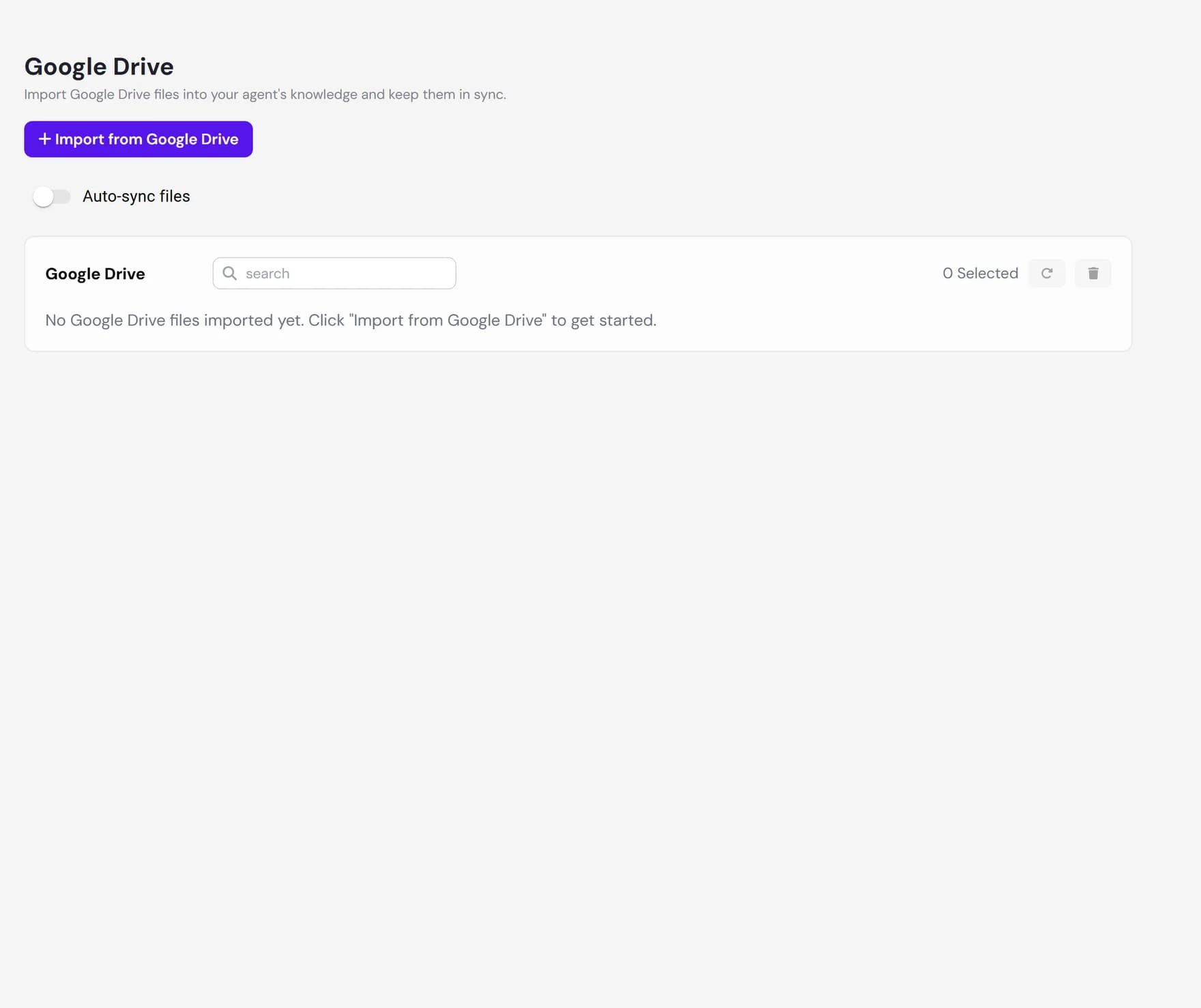
Open your agent in the dashboard, go to the Knowledge Base, and select the Google Drive tab. The first import walks you through connecting an account; after that, importing is a single click.
Click Import from Google Drive
On the Google Drive tab, click Import from Google Drive. If no Google account is connected yet, you are asked to connect one first.
Connect your Google account
Sign in with Google and approve the request. The consent screen runs in a popup when the dashboard is embedded in your site builder, or as a normal redirect otherwise. The account email becomes the name of the connection so you can tell several accounts apart.
Make sure you leave the file-access permission ticked on Google's screen. If you untick it, the connection cannot be used to import anything and you will be asked to try again.
Pick your files in Google's picker
Ultimo Bots opens Google's own file picker, so the experience is exactly what you already know from Drive, including search. Select one file or several at once. If you have connected more than one Google account, choose which account to pick from at the top of the dialog.
Import
Confirm your selection. Each file is downloaded, its text is extracted, and it is added to your agent's knowledge. The files appear in the list right away with a spinner while they are being processed.
Which files you can import
The picker shows the file types your agent can read as text. Pick any of the following:
- PDF documents (
.pdf). - Google Docs. Converted automatically on import.
- Google Sheets. Converted automatically on import.
- Word documents (
.doc,.docx). - Rich text (
.rtf). - Plain text, CSV, and Markdown (
.txt,.csv,.md).
Imported files share the same knowledge allowance as everything else in your Knowledge Base, so they count toward your plan's document limit together with your website pages, uploads, FAQs, and other connected sources. If an import would go over the limit, the dashboard tells you before anything is imported.
.xlsx files are also not in the picker; save them as Google Sheets or a CSV first.How imported files become knowledge
Importing is automatic and runs in the background. For each file you select, Ultimo Bots downloads it from Drive, extracts the readable text, and adds it to your agent so it can be searched during chats. Google Docs and Sheets are exported to a readable format on the way in. You can keep working while files process.
Each file shows its status in the list, so you always know where it stands:
| Status | What it means |
|---|---|
| Importing | The file is being downloaded and read. A spinner shows next to it and a counter at the top shows how many files are still importing. |
| Ready | The file has been read and your agent can now answer from it. A green check appears next to the file name. |
| Failed | The file could not be read, for example if it has no extractable text or is no longer reachable. Remove it and import again, or pick a different file. |
To check what your agent actually learned from a file, open it from the list. You see the extracted text exactly as your agent received it, which is the fastest way to confirm a document came through correctly.
Keeping files up to date
An imported file is a snapshot taken at import time. If you later edit the document in Drive, the change does not reach your agent on its own. You have two ways to refresh:
- Refresh on demand. Select one or more files and use the refresh action. Ultimo Bots re-downloads each file and replaces its knowledge with the current version.
- Automatic sync. Turn on Auto-sync files on the Google Drive tab to have your imported files refreshed on a schedule, so edits in Drive are picked up without you doing anything. It opens an Auto-sync settings dialog where you confirm the schedule. Automatic sync is available on the Boost plan and above; on the Smart plan, refresh your files manually instead.
Disconnecting an account
You can manage and disconnect Google accounts from the connection list in your data sources. Removing a connection stops it from being used for future imports and refreshes. Files you already imported stay in your Knowledge Base as their own entries until you remove them; you can delete them from the Google Drive tab whenever you like.
If a connection's access expires, the dashboard shows a Reconnect prompt. Reconnecting signs the account in again so imports and refreshes keep working.
Next steps
Add more sources, or connect another place your documents live: