Agents
Agent overview
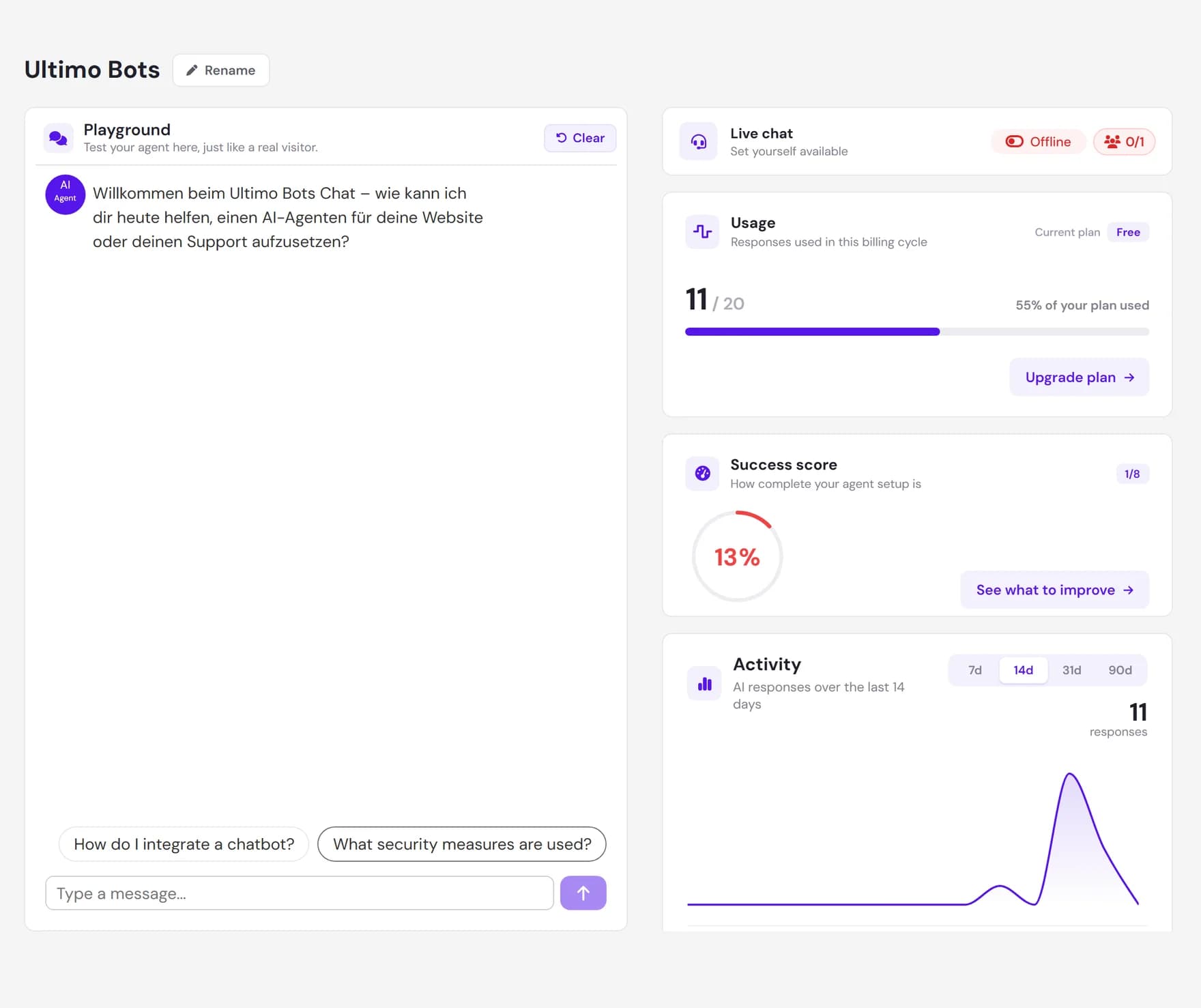
The Overview is the home screen for a single agent. It is where you land after you select an agent, and it pulls together everything you need to judge one agent at a glance: a built-in Playground to test it, a setup score that shows how finished it is, your usage for the billing cycle, and a chart of recent activity.
You reach this page by opening the dashboard and choosing an agent. Everything on the Overview is scoped to the agent you have selected, so switching agents in the sidebar updates the whole page. If you have not created an agent yet, start with Create an AI agent; if you are not sure which screen does what, see Manage agents.
How the page is laid out
The agent name sits at the top with a Rename button next to it. Below that the page splits into two columns:
- Left: the Playground. A full, live chat with this agent so you can try questions without leaving the dashboard.
- Right: four cards. Live chat availability, Usage, Success score, and Activity, stacked top to bottom.
On narrower screens the two columns stack, so you may need to scroll to reach the cards. The sections below explain each part and what to do with it.
Rename the agent
The heading shows the agent name. Click Rename to edit it inline: type a new name and press Enter to save, or Escape to cancel. The name can be up to 50 characters. If you clear it or leave it unchanged, nothing is saved.
The name is for you and your team. It is how the agent is labelled across the dashboard, analytics, and your agent list, so a clear name such as Support Assistant or Sales Helper makes agents easy to tell apart. Renaming does not change anything your visitors see, and it does not affect the agent's knowledge or answers.
Test it in the Playground
The left side of the Overview is a fully working chat with the selected agent, embedded right in the page. It behaves like the agent your visitors will use: ask it a question and it answers from the knowledge you have given it. This is the fastest way to sanity-check an agent after you add knowledge or change its behavior.
- Ask real questions. Try the things your customers actually ask, including edge cases and questions the agent should politely decline.
- See answers update live. When you finish a Playground conversation, the Usage figure and the Activity chart on the right refresh so they include the messages you just sent.
For a deeper walkthrough of testing, sharing a preview link, and reading how the agent decided on an answer, see Test your agent.
Read the success score
The Success score card shows how complete your agent's setup is. It is a self-graded checklist: a ring shows an overall percentage, and a small completed / total tag tells you how many items are done. Click the card (or See what to improve) to open the full checklist, where each item can be expanded to read what it means and to jump straight to the screen that fixes it.
There are eight items, and each one is worth the same share of the score regardless of how it is labelled. The items are sorted so the most impactful ones appear first, but completing any item moves the score by the same amount. A higher score does not guarantee better answers; it measures setup completeness, not answer quality. Always confirm quality in the Playground.
| Checklist item | What completing it means | Where it takes you |
|---|---|---|
| Behavior | You have set at least one custom behavior so the agent follows your rules and tone. | AI Studio › Behavior |
| Paid plan | The agent is on a paid plan rather than Free, unlocking higher limits. | Billing (opens the upgrade options) |
| Design | The look and feel of the chat is set up to match your brand. This item currently counts as complete by default; it is not yet actively verified. | Deploy › Design |
| Documents | At least one knowledge source is attached so the agent has something to answer from. | Knowledge › Documents |
| Questions | Visitors have asked the agent enough real questions (this tracks actual traffic, not questions you preconfigure). | Deploy › Channels (get the agent in front of visitors) |
| Leads | The agent has captured a few leads, confirming lead capture works end to end. | AI Studio › Skills (turn on lead capture with the marks-lead toggle). Captured leads are viewed under Activity › Leads. |
| FAQ | At least one question and answer pair is set up for fast, exact replies. | Knowledge › FAQs |
| Reporting | Scheduled email reports are turned on so you get a regular summary. | Activity › Reporting |
Check usage for the cycle
The Usage card shows how many responses this agent has used in the current billing cycle, against your plan's limit. You will see the count, the limit, the percentage used, and the name of your current plan. When you reach the limit the card says Limit reached this cycle.
Because Playground replies count too, this figure ticks up as you test. The card includes a quick action: Manage billing if you are on a paid plan, or Upgrade plan if you are on Free. Usage resets each billing cycle. For plan details and changing your plan, see Billing.
See recent activity
The Activity card charts the agent's AI responses over time so you can spot trends at a glance. Use the range switcher to view the last 7, 14, 31, or 90 days; it opens on 14 days, and your choice is remembered for next time. A total next to the chart sums the responses in the window you have selected.
- Hover any point to see the date and how many responses happened that day.
- Switching the range is instant. The line simply extends or shrinks to the window you pick, with today anchored on the right.
This card is a summary. For the full picture, including conversation topics, lead trends, and other breakdowns, use Explore more on the card, which opens Insights.
Live chat availability
The Live chat card lets you mark yourself available to take over conversations in person. Use its toggle to set yourself available, or click the card to open the team roster and see who else can pick up chats. When nobody is available, the agent continues to handle conversations on its own.
This is just the quick switch. To configure live chat properly, including office hours, routing, and what visitors see, head to Live chat settings, and take over conversations from the Live inbox.
How to read it and what to do next
A good first pass through the Overview looks like this:
Confirm you are on the right agent
Check the name at the top, and rename it if it is unclear.
Test it in the Playground
Ask a few real questions. If the answers are off, the fix is usually more or better knowledge, or a behavior rule.
Work the success score
Open the checklist and complete the open items. Each one has a button that takes you straight to the screen that fixes it.
Watch usage and activity
Once the agent is live, check Usage so you do not run out of responses, and use Activity to see whether traffic is growing.