Support
Help & support
There are a few ways to get unstuck with Ultimo Bots: ask the assistant built into the product, read these docs, email the team, or book a call. Most questions have a fast self-serve answer. This page explains where each one fits so you reach the right place the first time.
Start with whatever is closest to what you are doing. If you are inside the dashboard and have a quick "how do I" question, the in-product Help assistant is usually fastest. If you want the full picture of a feature, these docs go deeper. When something is account-specific or you would rather talk it through, email or a call is the right move. The sections below cover each option and set honest expectations about what it can and cannot do.
The in-product Help assistant
Inside the dashboard, open Help from the sidebar. The Help page has a chat assistant on the left and ways to reach the team on the right. The assistant is itself an Ultimo Bots AI agent, trained on this same documentation, so asking it a question is a lot like searching these docs in plain language.
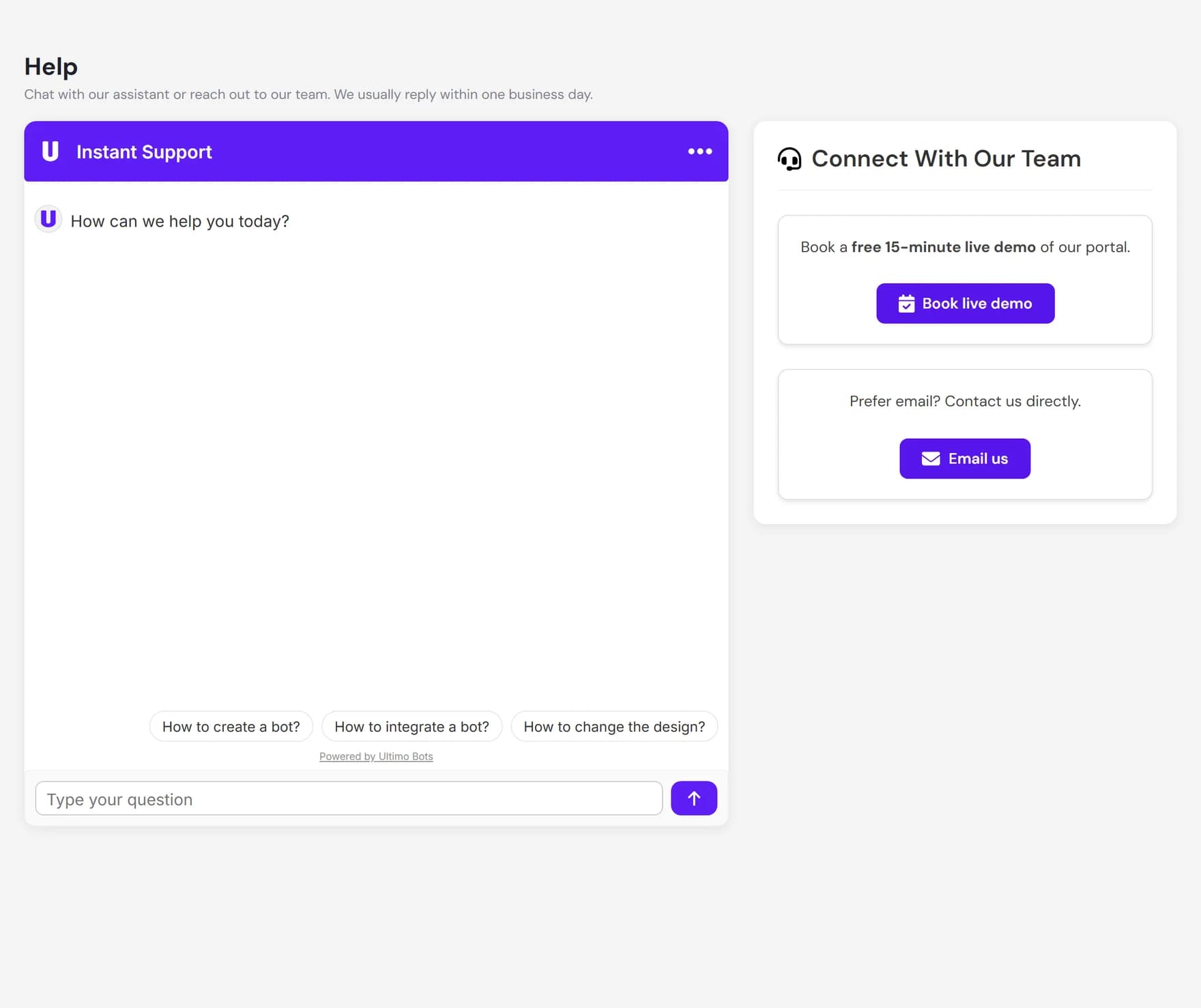
It is a good first stop for questions like:
- Where do I find a setting, such as the welcome message or the lead form?
- How does a feature work, for example knowledge sources or live chat?
- What does a plan include, or what happens when I hit a limit?
This documentation
You are reading the public help centre. It is the most complete self-serve resource and it is what the in-product assistant is trained on, so the two stay in step. Use the sidebar to move between sections, or jump to the guides people reach for most:
| If you want to | Start here |
|---|---|
| Get a first agent live from a blank account | Quickstart |
| Understand how an agent answers questions | How your agent works |
| Create a new agent step by step | Create an agent |
| Teach your agent with websites, files, FAQs, and more | Knowledge overview |
| Add the agent to your website or another channel | Channels |
| See conversations, leads, and usage | Insights |
| Check how your data is handled | Data security |
Contact the team
When a question is about your specific account, or you would rather talk to a person, the Help page gives you two direct options:
Email the team
Write to build@ultimo-bots.com. This is the best channel for account issues, billing questions, bug reports, and anything that needs a human to look at your setup. We usually reply within one business day.
Book a live demo
From the Help page, click Book live demo to schedule a free 15-minute call. A call is the right choice when you want hands-on help, for example walking through setup together or talking through whether Ultimo Bots fits your use case. See Book a call for details.
Self-serve versus a call
Most things are faster to solve yourself, and the docs and assistant are built for that. Reach for a person when the answer depends on your account or on a real conversation. Here is a simple way to decide:
| Your situation | Best channel |
|---|---|
| "How does this feature work?" or "Where is this setting?" | In-product Help assistant or these docs |
| Setting up your first agent and following a clear path | Quickstart |
| A billing question, or something specific to your account | Email build@ultimo-bots.com |
| A bug, or the product is not behaving as the docs describe | Email the team with steps and the agent involved |
| You want hands-on help or to talk through fit before committing | Book a call |
Get help faster
Whichever channel you choose, a little context goes a long way. When you write in, it helps to include:
- Which agent you mean, by name, if you have more than one.
- What you expected to happen and what happened instead.
- The steps to reproduce it, plus a screenshot if you can take one.
- The browser or device you saw it on, for display or widget issues.
For a self-serve fix, the same detail helps you search: paste the exact wording of a message or setting into the Help assistant, or use it as a starting point in these docs.
Where to go next
Pick the option that matches what you need right now. For account-specific or hands-on help, talk to the team. To keep moving on your own, jump back into the guides.