Activity
Reporting
Reporting sends a regular analytics email so you stay on top of how your agent is doing without opening the dashboard. You choose which days it arrives, who receives it, and whether to attach a full chat-history spreadsheet.
You configure reports per agent on the Reporting tab of the Analytics screen in the dashboard. Each agent has its own schedule and its own recipient list, so a busy support agent can report on Mondays while a quieter one reports less often, or not at all.
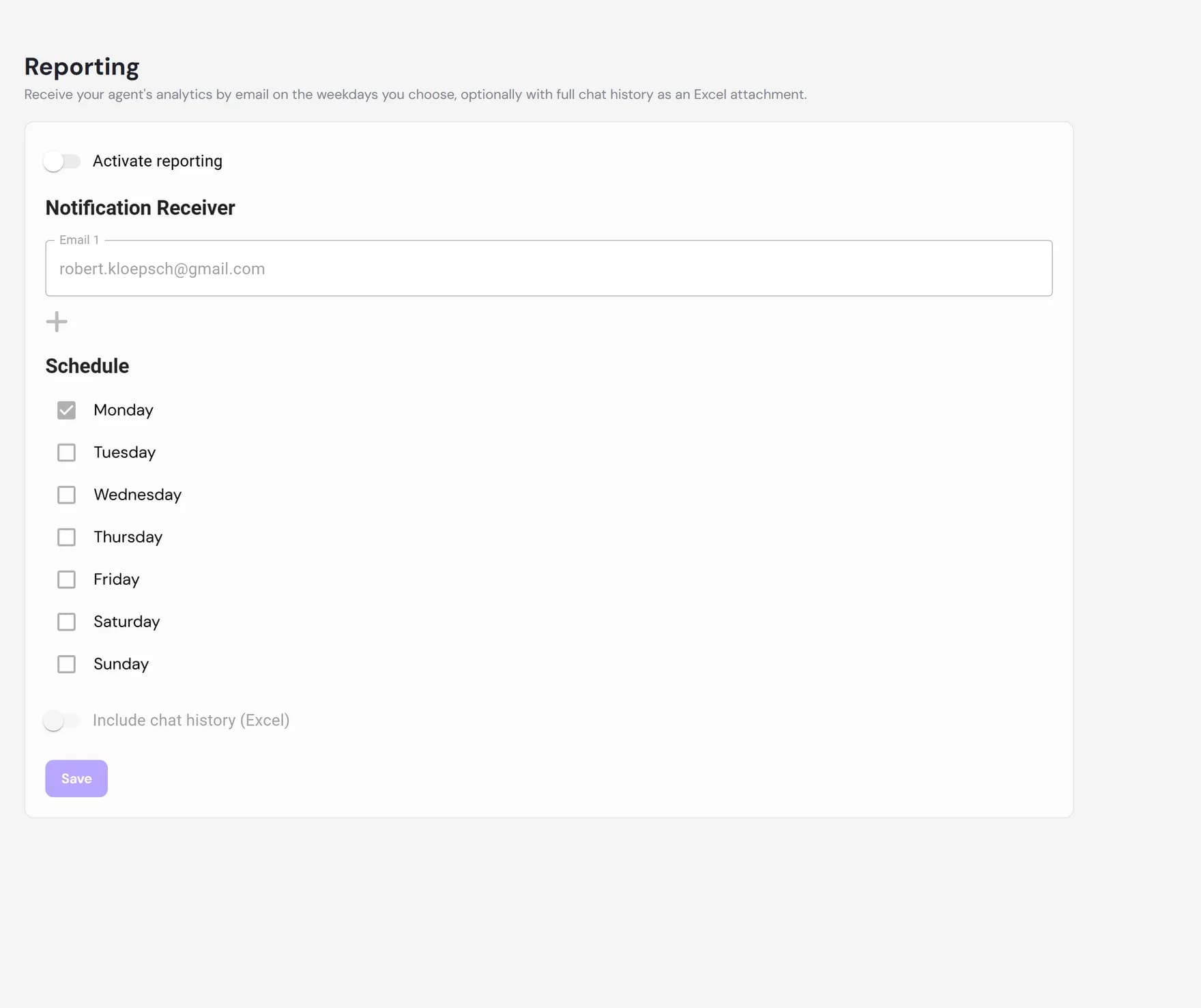
Turn reporting on
At the top of the tab is the Activate reporting switch. This is the master control: while it is off, every other field on the page is disabled and no emails go out. Switch it on and the recipient, schedule, and attachment settings become editable.
The activate switch saves on its own, the moment you flip it. The other settings on the page are held until you click Save, so you can adjust them together and apply them in one go.
Add recipients
Under Notification receiver you list the email addresses that should get the report. The owner address is filled in for you to start with. You can:
- Edit an address by typing into its field.
- Add another recipient with the plus button, which adds a new email field.
- Remove a recipient with the trash button next to it (available once you have more than one).
Each recipient receives their own copy of the email. There is no limit built into the screen, so you can send the report to a whole team, a shared inbox, or an external stakeholder. Remember to click Save after editing the list.
Choose which weekdays to receive it
The Schedule section is a list of the seven weekdays, each with a checkbox. Tick every day on which you want the report to arrive. There is no single fixed frequency: you build the cadence yourself by selecting days.
- One day (for example Monday only) gives you a weekly report.
- Several days (for example Monday and Thursday) sends the report on each of those days.
- Every day gives you a daily report.
Each report covers the period since the previous one was sent, so the numbers never overlap and nothing is double-counted. The first report after you switch reporting on looks back over the past seven days.
The optional Excel attachment
The Include chat history (Excel) switch adds a spreadsheet of the full conversation transcripts for the reporting period as an attachment on the email. Leave it off and the email carries the summary numbers only.
The attachment contains the raw conversations, not the summary figures. It is the way to get the transcripts out of the product, for example to archive them or read them outside the dashboard. If there were no conversations in the period, no spreadsheet is attached.
Settings reference
Here is every control on the Reporting tab, what it does, and how it starts out on a new agent.
| Setting | What it does | Default |
|---|---|---|
| Activate reporting | Master switch. While off, nothing is sent and the other controls are disabled. Saves immediately when toggled. | Off |
| Notification receiver | The list of email addresses the report is sent to, one copy per address. | The account owner's email |
| Schedule (weekdays) | The days of the week on which the report is sent. Pick any combination. | Monday |
| Include chat history (Excel) | Attaches a spreadsheet of the full conversation transcripts for the period. | Off |
What the report email contains
The email is a snapshot of your agent's activity for the period it covers. It summarises the same headline numbers you see live on the Insights tab, including:
- Number of chats started in the period.
- Total messages your visitors sent.
- Average messages per chat, a rough measure of how involved each conversation was.
- Average response time, how quickly the agent replied.
If you turned the Excel switch on, the spreadsheet of full transcripts is attached alongside this summary. For the live, interactive version of these numbers, with charts and a country map, open the Insights tab any time.