Activity
Conversations
Conversations is the searchable history of every chat your agent has handled, across every channel. Open a session to read the full transcript exactly as the visitor saw it, find the questions your agent could not answer, and download the record when you need it.
You will find this view under Activity in the dashboard, on the tab labeled Inbox. It sits in your analytics area alongside Insights and Leads. The channel filters and the date range at the top apply to the agent (or agents) you have selected, so everything on the page reflects the same scope.
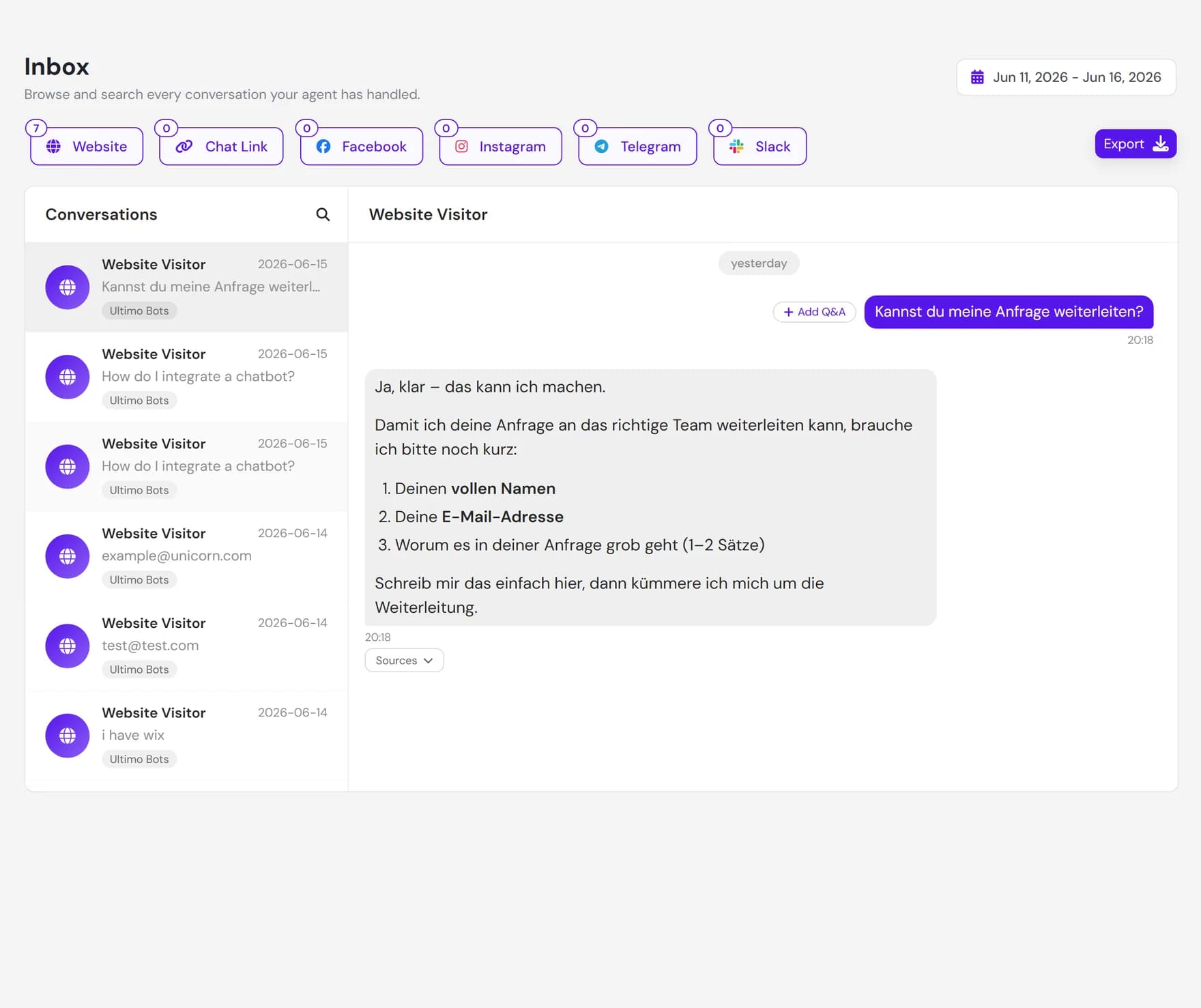
Browse and search conversations
The left panel lists past sessions newest first. Each row shows who the visitor was, the channel they used, a preview of the most recent message, the date, and a country flag for website visitors. The header above the list reads Conversations and the panel loads more sessions automatically as you scroll, so you do not page through them by hand.
For website visitors the row simply reads Website Visitor. For social channels the agent shows the real person where it can. A Telegram, Facebook, Instagram, or Slack visitor appears by their profile name or handle rather than a generic label once that detail has been fetched. Social-channel rows also show a small status dot that tells you whether the agent is currently auto-replying to that thread (see replying to social-channel visitors below).
To find a specific chat, click the search icon at the top of the list. Search looks across the visitor name, the agent name, and the text of the messages themselves, so you can type a phrase a customer used (for example a product name or an order reference) and jump straight to the conversations that mention it.
Filter by channel
Above the list is a row of channel chips: Website, Chat Link, Facebook, Instagram, Telegram and Slack. Every chip is on by default, so you see conversations from every channel at once without switching tabs. Each chip carries a live count of how many conversations it holds, and toggling one off hides only that channel and leaves the rest in place.
Choose a date range
The date range at the top of the page controls which period you are looking at. When you first open Conversations it fills itself in from your data, spanning from your earliest chat through today, so you start with the full picture. Narrow the start and end dates to focus on a launch week, a campaign, or a single day, and the list updates to match.
Read a full transcript
Select any session and the full conversation opens on the right, oldest message first, the way the visitor experienced it. Dates are shown as separators between days and each message carries its own time stamp, both in your configured time zone, so you can see exactly when things were said.
Inside a transcript you can:
- See where an answer came from. Many agent replies have a Sources link. Expand it to see which website pages, documents, or Q&A entries the agent drew on for that answer. This is the fastest way to check whether a reply was grounded in your real content.
- Follow mixed threads. On the website channel, AI answers and any replies your team sent from the Live inbox appear together in order, so you can see the full handover.
- Turn a question into knowledge. Every visitor message has an Add Q&A button. Read more about this just below.
Reply to social-channel visitors
When you open a conversation from a social channel, this view gives you two extra controls in the conversation header that you do not get for website chats.
Mute the agent for one thread
With a social session open, an Auto-Response toggle appears at the top of the conversation. Turn it off and the agent stops auto-replying to that one visitor, so you can take the conversation over yourself. Turn it back on and the agent resumes. This applies to that single thread only, so muting one conversation never changes how your agent behaves for everyone else.
Type a reply on supported channels
On Facebook and Instagram, a reply box sits at the bottom of the open conversation. Type a message and send it, and it goes to the visitor on that channel and appears inline in the transcript alongside the agent and visitor messages. This is handy when you want to step in personally after muting the agent for the thread.
Spot questions the agent could not answer
Reading transcripts is the most reliable way to find gaps in your agent's knowledge. When you see a visitor message the agent answered poorly, vaguely, or not at all, you do not have to leave the page to fix it.
Find the weak answer
Scan the transcript (or search for a topic) until you find a question the agent missed. An expanded Sources panel that is empty or off-topic is a good signal the answer was not grounded in your content.
Click Add Q&A
Use the Add Q&A button on the visitor's message. A dialog opens with the visitor's wording prefilled as the question and the agent's next reply prefilled as the answer, so you start from what actually happened.
Refine and save
Give the entry a short title, correct the question and answer as needed, and save. The new Q&A is added to that agent's knowledge so it can answer the same question confidently next time. You can manage every saved entry on the FAQs page.
Export the chat history
The Export button at the top right downloads your conversations as an Excel spreadsheet. It exports the selected agent (or each selected agent) for the current date range, and asks you to confirm the range before the download begins. The export is the conversation transcripts themselves, useful for sharing with a colleague, archiving, or analysing offline in a tool of your choice.
How this differs from the Live inbox
Both pages show conversations, but they serve different jobs. Conversations is the read-only history you come back to. The Live inbox is the real-time desk your team works from while a visitor is on your site.
| Conversations (this page) | Live inbox |
|---|---|
| The historical record of past chats. | A live view of chats happening right now. |
| Loads for the date range and channels you choose, and refreshes when you change them. | Updates on its own as new messages arrive. |
| Built for reviewing, searching, and exporting. | Built for a person to step in and reply to a visitor live. |
| Spans every channel together, filterable by chip. | Focused on active website sessions and handovers. |
Next steps
Keep going with the rest of your activity views and the live desk:
Looking for related tools? The FAQs page is where the Q&A entries you add from a transcript live, and testing your agent lets you confirm a fix before your next visitor asks.