Knowledge Base
OneDrive
Connect a Microsoft account and pull documents straight out of OneDrive into your agent's knowledge. Pick individual files or whole folders, and Ultimo Bots reads them with the same pipeline it uses for uploaded documents.
OneDrive is one of the cloud sources in the Knowledge Base, next to website links, uploaded documents, FAQs, and Google Drive. You connect your Microsoft account once, browse your files inside the dashboard, and choose what the agent should learn from. Everything you import is added to the same knowledge base, so your agent can answer from your OneDrive content exactly as it would from a PDF you uploaded by hand.
Connect a Microsoft account
Open the OneDrive tab in the Knowledge Base and click Import from OneDrive. If you have no account connected yet, the picker shows a Connect OneDrive button. Sign in with Microsoft and approve the access request. Personal Microsoft accounts and work or school accounts both work.
When the dashboard runs inside an embedded view (for example the Wix App Market), the sign-in opens in a small popup window and the file list refreshes as soon as you finish. Otherwise it redirects you to Microsoft and back. You can connect more than one account: the picker has an Add another account link, and a dropdown to switch between them. All members of your workspace can use any account that has been connected.
Select files and folders
Once an account is connected, the picker shows a file browser for that account. Click a folder to open it, use the Back button to step out, and follow the breadcrumb at the top (for example OneDrive / Reports / 2026) to see where you are. The browser only lists files your agent can actually read, so unsupported files are hidden rather than shown greyed out.
Pick the account
If you connected just one account it is selected for you. With several, choose the right one from the dropdown. Switching accounts takes you back to that account's root folder.
Tick files or whole folders
Each row has a checkbox. Tick individual files, or tick a folder to import everything inside it. A running X files selected count shows at the bottom as you go.
Import the selection
Click Import Selected. If you picked any folders, Ultimo Bots first lists out their contents and shows you a confirmation screen so you can review the exact files, uncheck any you do not want, and then confirm. A single folder import covers up to 1,000 files (and up to ten levels of nested folders). For very large folders, import in smaller batches.
Supported file types
The OneDrive browser shows and imports these file types only. Anything else in a folder is left out of the list.
| Type | Extensions |
|---|---|
| Documents | .pdf, .doc, .docx, .rtf |
| Text and notes | .txt, .md |
| Spreadsheets | .csv |
.xlsx files are not on the list. If you need spreadsheet data in your agent, export the relevant sheet to .csv first. Each file is read in full; there is no partial import.How imports become knowledge
Importing runs in the background. For every file you select, Ultimo Bots downloads it from OneDrive, reads the text out of it, and adds it to the knowledge base where it is split into small pieces and indexed so the agent can search it. The picker closes as soon as the import starts, and the files appear in the OneDrive list with a live status.
| Status | What it means |
|---|---|
| Importing | The file is being downloaded and read. A spinner and an "X files currently importing" note show while this runs. |
| Ready | A green check means the file is indexed and the agent can answer from it. Open it with the view button to check the extracted text. |
| Failed | A red mark means the file could not be read (for example it was empty, password protected, or an unreadable scan). Re-import it or remove it. |
Keeping files in sync and re-importing
OneDrive content does not update on its own when the original file changes. There are two ways to refresh it.
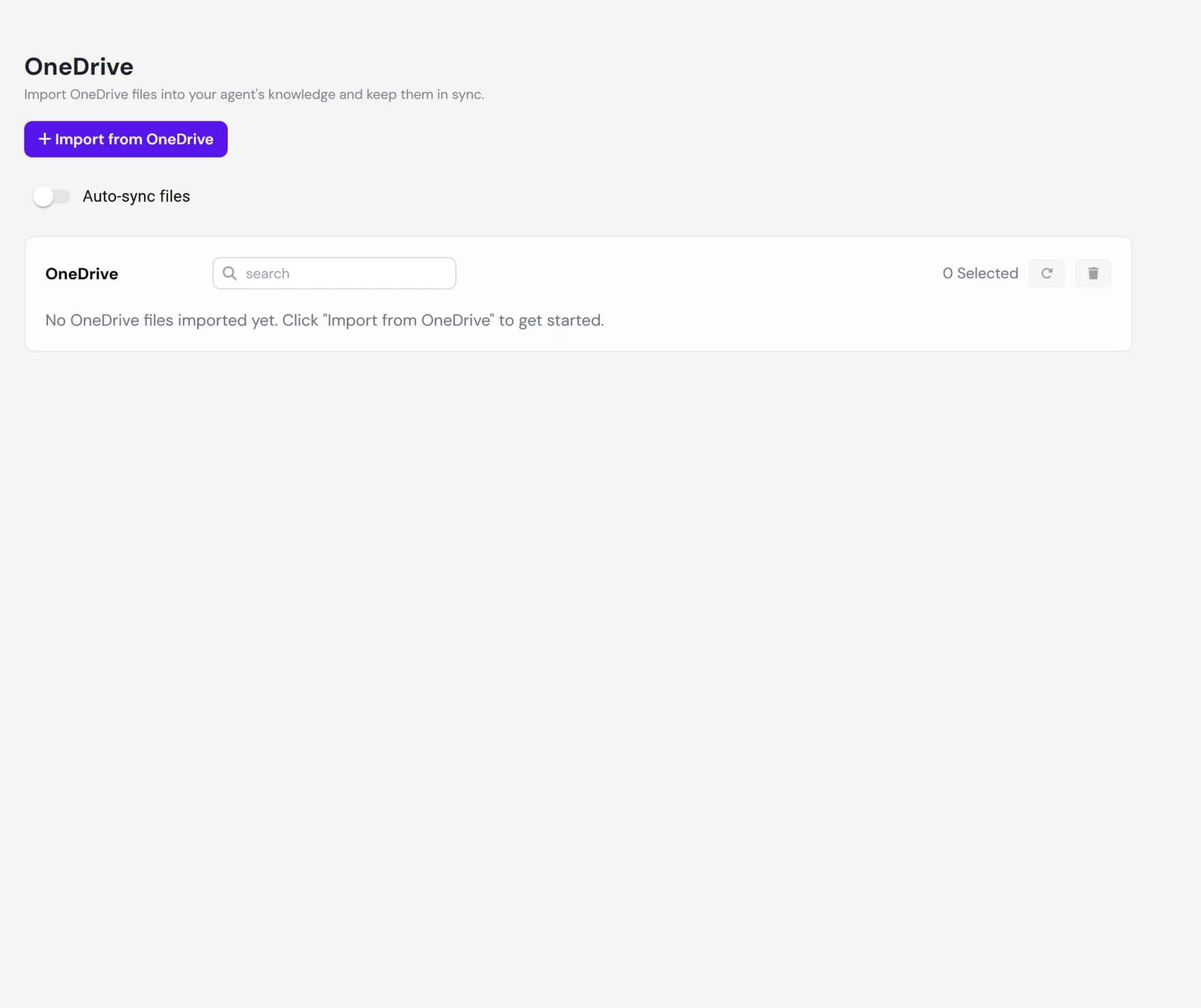
- Re-import on demand. In the OneDrive list, tick one or more files and click the refresh action. Ultimo Bots downloads the latest version and re-reads it, so the agent picks up your edits.
- Automatic sync (folders). If you imported a folder, you can turn on Auto-sync files at the top of the OneDrive tab and pick a schedule. The monthly cadence is available on the Boost plan and above. The daily cadence requires the Ultimo plan. Two options control what a run does: add files that were newly added to the folder, and remove files that were deleted from it. Each run also refreshes the content of the files it already tracks.
Manage or disconnect an account
You can remove individual imported files at any time: tick them in the OneDrive list and use the remove action. This deletes them from the knowledge base, but leaves the originals untouched in OneDrive.
To remove the connection itself, open the connection manager from the Data Connections area and disconnect the account. If a Microsoft sign-in stops working and cannot be refreshed, you may need to reconnect the account. Open the connection manager and sign in again. Your imported files stay in place.
Next steps
Round out your agent's knowledge with the other sources:
Troubleshooting
.xlsx workbooks shows as empty. The hint lists what is supported: .pdf, .doc, .docx, .rtf, .txt, .csv, and .md.