Agents
Manage agents
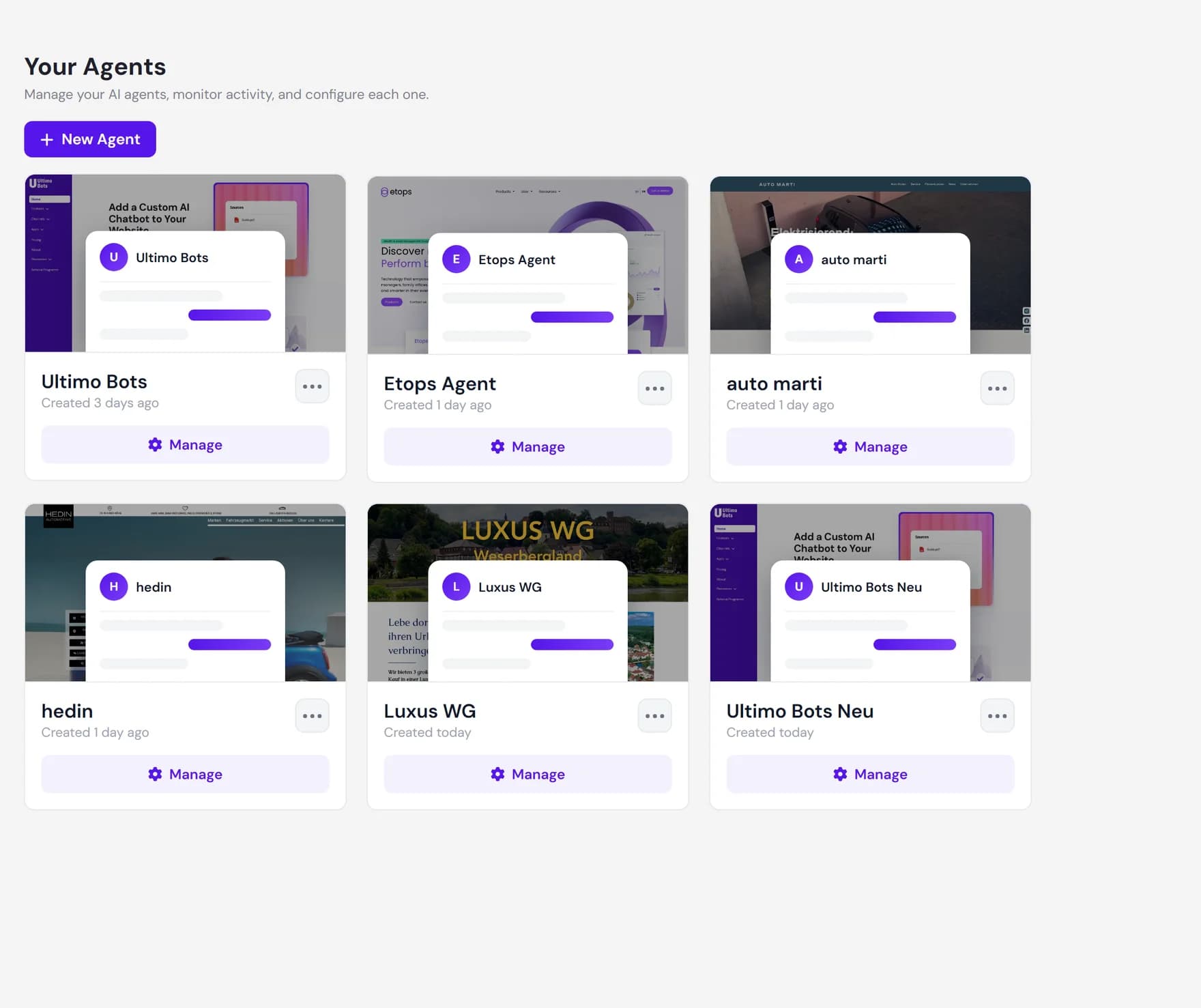
The Your Agents screen is your home base. It is where you switch between agents, check whether a new one finished building, rename or remove an agent, and keep an eye on how many messages each one has used this month.
Your Agents is the first screen you land on after signing in to the dashboard. Every agent you have created appears here as a card. Each agent is fully independent: it has its own knowledge, design, behavior, analytics, and its own plan. From this one screen you can open any agent, see its status at a glance, and take quick actions without leaving the page.
Switch between agents
Each card on the Your Agents screen represents one agent. To start working on an agent, click its card or use the Manage button. This opens that agent and takes you into its section pages (Overview, Knowledge, Behavior, Design, Live Chat, Activity, and so on). From that point on, the dashboard shows settings and data for the agent you opened until you switch to another one.
Only agents that have finished building can be opened. A card that is still building or that failed is not clickable yet, so you cannot accidentally open an agent that is not ready.
Read the build status
When you create an agent, Ultimo Bots builds it in the background and shows the progress right on the card. The card updates live, so you can watch a brand-new agent go from building to ready without refreshing the page. Each agent is in one of these states:
| Status | What it means | Can you open it? |
|---|---|---|
| Building | The agent is being created and is reading your website and documents. The card shows a live progress percentage. | Not yet |
| Completed | The agent finished building and is ready to test, customize, and add to your site. | Yes |
| No content found | The agent was created, but no readable content was found at the URL or in the files. You can still open it and add a different knowledge source. | Yes |
| Failed | Something went wrong during the build. Adjust the source and create the agent again. | No |
Rename an agent
The agent name is what you see across your dashboard and analytics, so a clear name like Support Assistant or Sales Helper makes a multi-agent workspace much easier to scan. You can rename an agent at any time:
Open the card menu
Click the three-dot menu in the top-right corner of the agent card and choose Rename.
Type the new name
The name turns into an editable field. Type the new name (up to 80 characters). Press Enter or click away to save, or press Escape to cancel without changing anything.
It saves on its own
The new name is saved as soon as you confirm. An empty name is ignored, so the agent always keeps a usable name.
Delete an agent
To remove an agent, open the three-dot menu on its card and choose Delete agent. Because deletion cannot be undone, you are asked to confirm by typing the word delete before the delete goes through. This is a deliberate speed bump, not an accident waiting to happen.
Monitor message usage
Every plan includes a number of AI responses per month. Usage is counted per agent, and each agent has its own monthly allowance based on its plan. The Your Agents screen flags an agent that has reached its limit so you are never surprised by an agent that quietly stopped answering.
When an agent reaches its monthly message limit, a Limit reached marker appears on its card, and the dashboard shows an upgrade prompt that compares your current plan with the next one up. Message allowances reset at the start of each billing month.
| Plan | AI responses per month |
|---|---|
| Smart | 500 |
| Boost | 2,000 |
| Ultimo | 100,000 |
Add extra messages before the reset
If a paid agent reaches its monthly limit and you do not want to wait for the reset or move to a bigger plan, you can buy an extra-message pack for that agent. A pack is a one-time purchase that adds messages on top of the plan allowance, so the agent keeps answering right away. Packs are billed through Stripe and are available on paid plans only (not on the Free plan).
You buy each pack yourself. Nothing is charged automatically when an agent runs low, so there is still no surprise metered bill.
Run multiple agents in one workspace
A single workspace can hold as many agents as you need, and they all live side by side on the Your Agents screen. This is useful when you want to keep concerns separate, for example:
- One agent per website or brand. Each agent learns only from its own sources and answers in its own voice.
- One agent per job. A support assistant trained on your help content and a separate sales assistant trained on your product pages.
- One agent per language or region, each pointed at the right content for that audience.
Each agent keeps its own knowledge, design, behavior, analytics, and plan. There is no shared message pool across agents, so an agent that hits its limit does not affect the others. To add another agent, click New Agent at the top of the list.
Quick actions on each card
Every agent card gives you the same set of fast actions:
- Manage. Open the agent and go to its section pages to edit knowledge, design, behavior, and more.
- Rename. Change the agent name inline from the three-dot menu.
- Delete agent. Permanently remove the agent after you type the word delete to confirm.
The card also surfaces the agent build status and, where it applies, a Limit reached or Past Due marker so the things that need your attention are visible at a glance. If live chat is in use, the card shows how many of your team are online for that agent, and you can open it to set yourself online or offline.