Live Chat
Live chat settings
Live chat lets a real person on your team step into a conversation that your AI agent is handling and reply to the visitor directly. This page is where you decide when that handover is offered, what the visitor sees, and what happens when nobody is available to jump in.
You will find these options in the dashboard under your agent's Live Chat settings. Everything here is per agent, so each agent can offer a different handover button, response time, and offline message. The live conversations themselves happen in the live inbox, and alerts about them are routed from the Notification Center.
How human handover works
Your AI agent answers visitors on its own around the clock. Live chat adds a path for a human to take over when a visitor wants to talk to a person, or when a question is better handled by your team. At a high level:
A visitor asks for a person
The visitor clicks the handover button in the chat (by default labelled Talk to a human), or your agent offers handover during the conversation.
Your team is notified
The request appears in your live inbox in real time, and a notification can be sent by email, Slack, or Telegram, plus an in-app alert, depending on your Notification Center setup. A Microsoft Teams channel is coming soon.
A teammate joins, or the timeout passes
If someone joins the conversation, they reply to the visitor directly. If no one joins within the response timeout, the request is cancelled and the AI agent stays in the conversation so the visitor is never left waiting.
Availability: when handover is offered
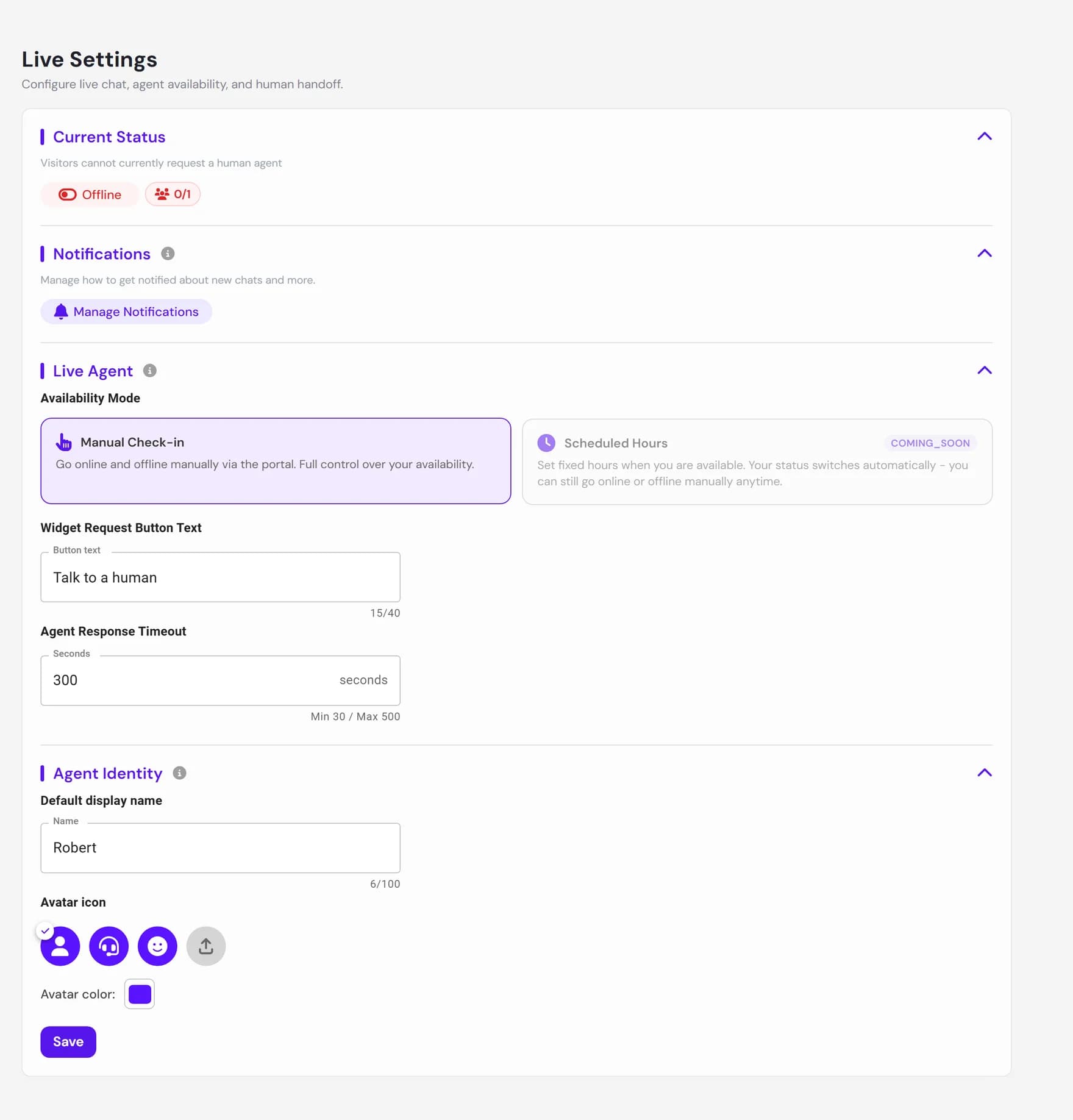
The Talk to a human button only appears to visitors when at least one teammate is marked as online for that agent. Availability is controlled in two related places:
- Your online status. At the top of the Live Chat settings page you can set yourself Online or Offline for the current agent, and see how many teammates are online. This status is always under your control: Ultimo Bots never flips you online or offline automatically, so closing the tab does not change it.
- Availability mode. The mode decides how online status is managed for the agent overall.
| Mode | What it does |
|---|---|
| Manual | You and your teammates turn yourselves online and offline by hand. Handover is offered to visitors only while someone is online. This is the default and the mode that is available today. |
| Scheduled Coming soon | Set weekly hours so availability switches on and off automatically. This option is shown in the dashboard but is not active yet. For now, use manual mode. |
The handover button visitors see
The handover button is the pill a visitor taps to ask for a person. You control both whether it appears and what it says.
- Show the button. A master toggle decides whether the handover button is offered at all. Turn it off if you want an agent that answers entirely on its own with no human handover path.
- Button text. The label defaults to Talk to a human and can be up to 40 characters. Use wording that matches your brand, for example Chat with our team or Speak to support.
Response timeout and the offline fallback
Two settings make sure a visitor is never stuck waiting: the response timeout, and the offline message.
Response timeout
The response timeout is how long a visitor's request for a person waits before it is treated as unanswered. You can set it between 30 and 500 seconds. If no teammate joins within that window, the request is cancelled, the visitor is told that no agent responded in time, and the AI agent picks the conversation back up so it keeps moving.
Offline message
The offline message is what a visitor sees when they ask for a person but no one is available. By default it explains that no live agent is available right now and that the AI assistant is happy to keep helping. You can rewrite it in your own voice, for example to set expectations about when your team is back, or to invite the visitor to leave their email so you can follow up.
How your team appears to visitors
When a teammate joins a conversation, the visitor sees a name and avatar rather than the AI agent's usual identity. You can set defaults for this so handovers feel consistent and on brand:
| Setting | What it controls | Default |
|---|---|---|
| Availability mode | How online status is managed (manual today, scheduled coming soon). | Manual |
| Show handover button | Whether the request-a-person button appears in the chat. | On |
| Button text | The label on the handover button (up to 40 characters). | Talk to a human |
| Response timeout | Seconds a request waits before the AI resumes (30 to 500). | Around 2 to 5 minutes |
| Offline message | Shown when a visitor asks for a person and none is available. | AI keeps helping |
| Agent display name | The name a visitor sees when a teammate joins. | Support Agent |
| Agent avatar and colour | The picture and accent colour shown next to a human reply. | Person icon, brand colour |
Automatic handover and notifications
Live chat settings cover the visitor side of handover. Two more things complete the picture:
- Automatic handover. Beyond the button a visitor can tap, your AI agent can decide on its own to bring in a person when that is the right move, for example when a visitor clearly asks to talk to a human. This is built in and works as soon as live chat is on. The settings on this page then control what the handover looks like and what happens if no one is available.
- Notifications. Knowing about a handover request is the difference between catching a visitor and missing them. Use the Notification Center to choose who is alerted, and over which channels, when a person is requested or a new conversation starts.
Next steps
With live chat configured, here is where to go next: