Agents
Create an AI agent
An agent is your branded AI assistant. You give it a name and some knowledge, and Ultimo Bots turns that into a working assistant that can answer your visitors questions. Most agents are ready in under a minute.
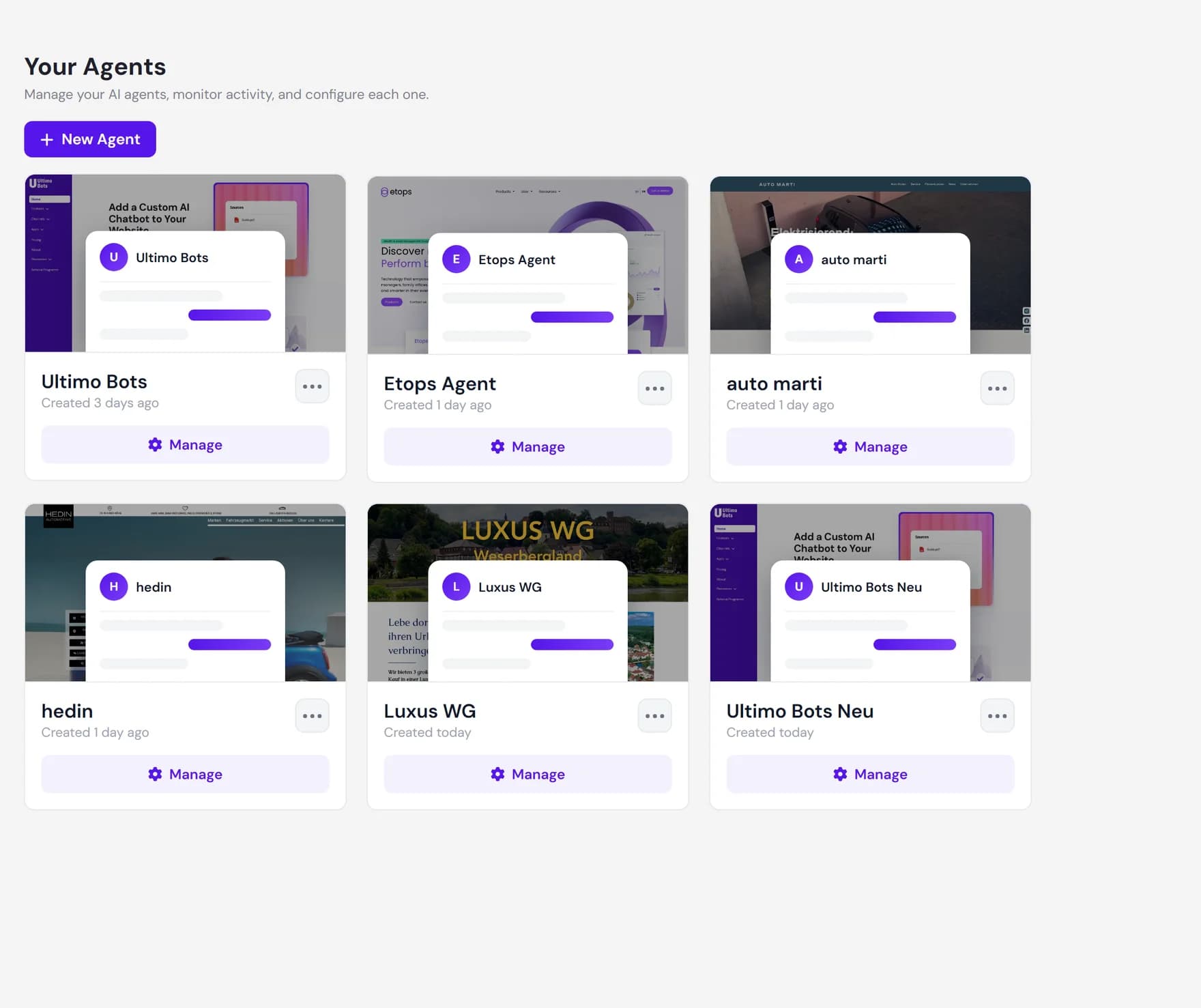
You create agents from the Your Agents screen, which is the first page you land on after signing in to the dashboard. Each agent is independent: it has its own knowledge, design, behavior, and analytics.
Before you start
You only need one of the following to give your agent something to talk about:
- A public website URL. Ultimo Bots crawls the site and learns from the pages it can reach.
- Documents. Upload files such as PDFs or Word documents (handbooks, FAQs, product sheets).
The agent name is the only required field. The website and documents are both optional, and you can add or change knowledge at any time after the agent is created.
Open the New Agent dialog
On the Your Agents screen, click New Agent. The button appears both at the top of the agent list and at the bottom of the left sidebar.
Fill in the form
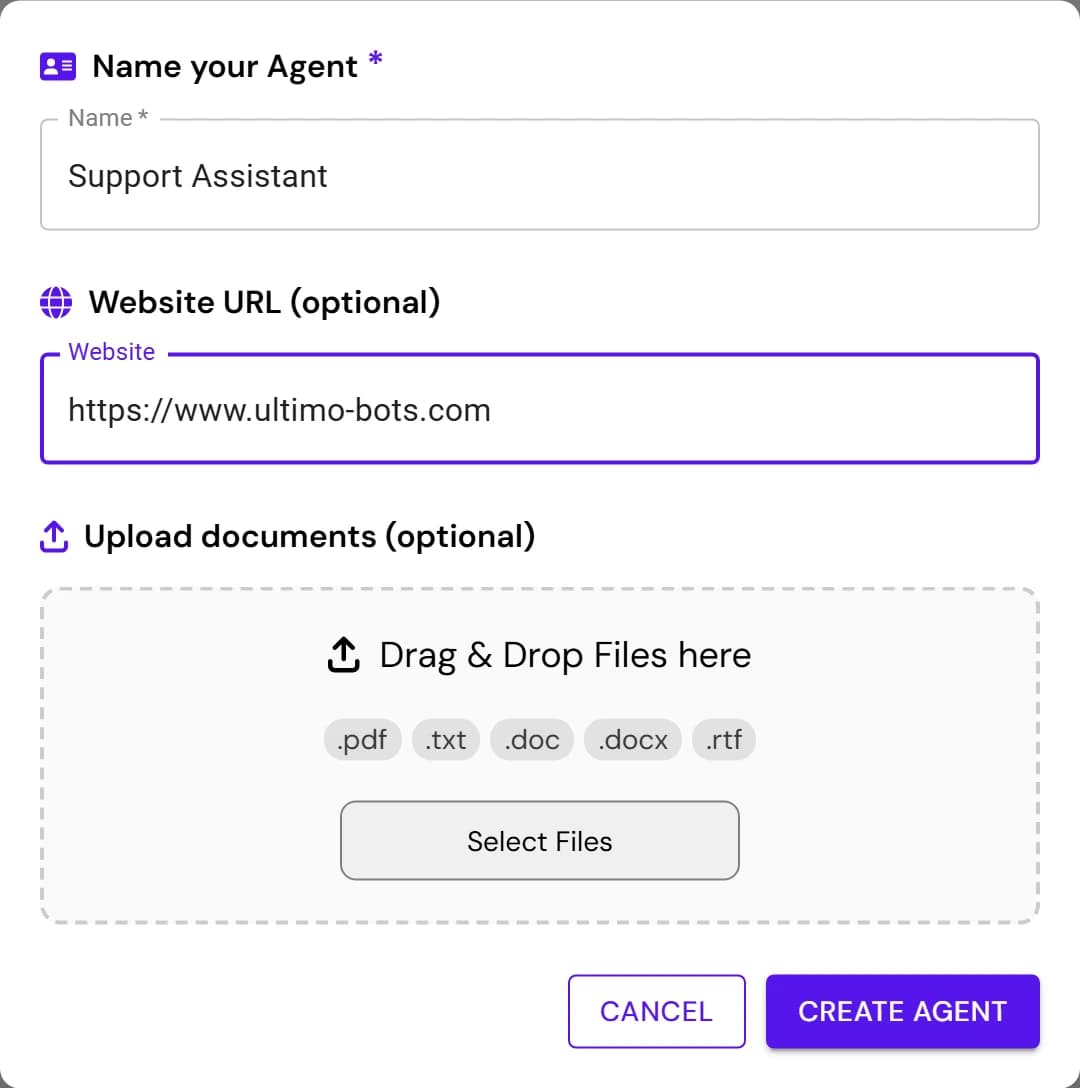
The dialog has three sections. Only the first is required, so the fastest way to create an agent is to enter a name, paste your website URL, and continue.
Name your agent
Give the agent a clear name such as Support Assistant. The name is shown in your dashboard and analytics, and you can rename it later.
Add a website URL (optional)
Enter the address of the site you want the agent to learn from, for example
https://www.your-company.com. Ultimo Bots checks that the URL is valid and reachable before it starts, so a wrong or private address is caught right away.Upload documents (optional)
Drag files into the upload area or click Select Files. Supported types are
.pdf,.doc,.docx,.rtf,.txt,.csvand.md, up to 20 MB per file and 100 MB in total.
Create the agent
Click Create Agent. If you added a website, Ultimo Bots first confirms the site is reachable (you will see a short spinner). If you left both the website and documents empty, it asks Continue without knowledge? so you do not create an empty agent by accident.
Once the check passes, the dialog closes and your new agent appears in the list with a progress indicator. The build runs in the background, so you can keep working while it finishes.
What happens during the build
Building an agent is fully automatic. Depending on what you provided, Ultimo Bots does some or all of the following:
- Reads your website. It looks for your sitemap first and otherwise follows the links it finds, reading up to around 100 pages.
- Reads your documents. Uploaded files are parsed and added to the same knowledge base.
- Sets up the assistant. It writes a starting persona, a welcome message, and two suggested questions, and picks a widget color based on your site.
Progress is shown live on the agent card. Typical builds finish in a few seconds to about a minute, depending on how much content there is.
While a build runs and after it finishes, the agent can be in one of these states:
| State | What you see and what it means |
|---|---|
| Building | The card shows a progress percentage and a Building agent... label while the agent reads your knowledge. Progress updates live. |
| Ready | The build finished and the agent simply becomes a normal card in your list. It is ready to test, customize, and add to your site. |
| No content found | The agent was created, but no readable content was found at the URL or in the files. A separate onboarding message tells you so, and you can add a different source. |
| Build failed | The card shows a Build failed label. Something went wrong during the build. Adjust the source and try again. |
After your agent is ready
Once the build finishes and the agent is ready, open it and keep going: