Test your agent
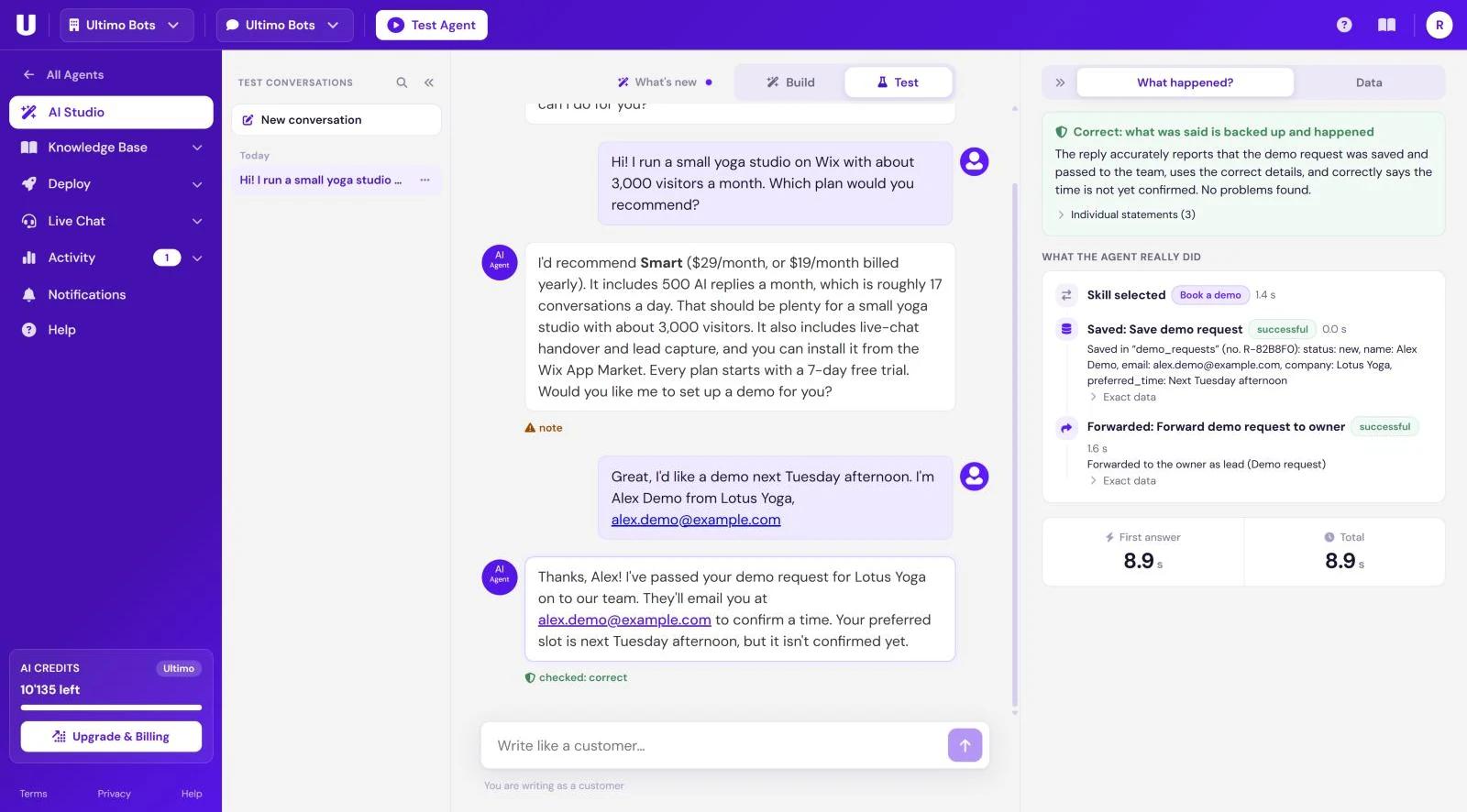
In Test you chat with your agent the way a customer would. For every answer you see what really happened behind it: which skill the agent used, what it looked up, what it saved or sent, and whether the automatic check found a problem.
How to open Test
- In AI Studio, click Test in the Build | Test switch at the top.
- Click Test Agent in the header. It opens AI Studio in Test for the selected agent, from anywhere in the portal.
- After Mo has built something, Test your agent now under Mo's input takes you there.
Chat as a customer
The test chat starts with your welcome message, just like your chat window. Type into the field Write like a customer… and press Enter (Shift + Enter for a new line). The answer appears word by word, and product cards are shown the way your visitors see them.
New conversation in the list on the left starts a fresh chat, so the agent does not remember what you asked before.
This is your real agent
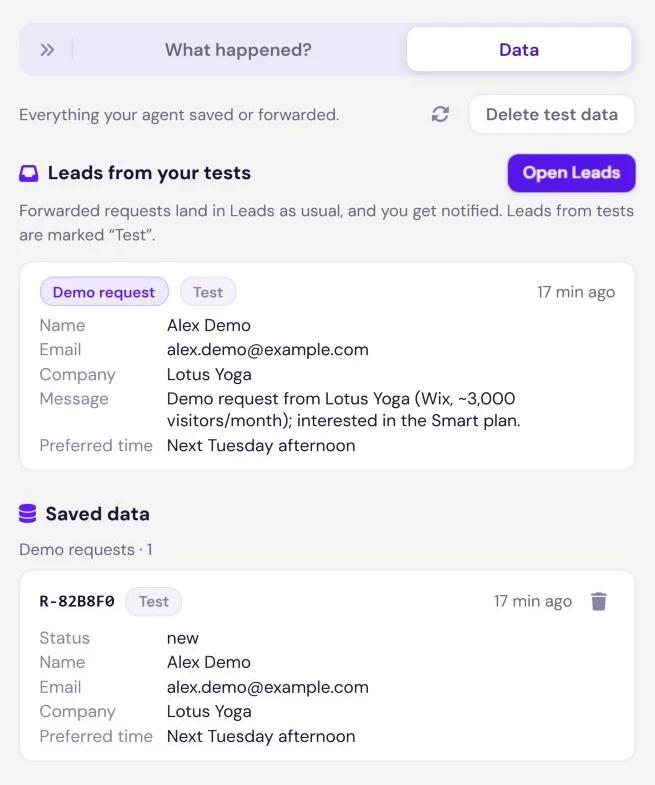
- Leads are real. A request your agent forwards lands in Leads, marked Test, and you get notified.
- E-mails are sent, also to an address you type in the chat.
- A handover to live chat is real when a teammate is online. The request appears in your Live Sessions, just as for a visitor.
- Building blocks act for real, for example an API call or an action in a connected app. Entries your agent saves are marked Test.
- Every answer costs credits at your agent's answer level (Ultimo Core 1, Ultimo Pro 4, Ultimo Max 8). See AI credits.
When your agent hands a test chat to your team, a note under the answer says so, with Open Live Sessions. While your team has the chat, the AI does not answer: your messages arrive in your Live Sessions, and the AI answers again once the handover ends or nobody takes it.
The check under each answer
When Check every answer automatically is on (in the Profile tab, on by default), every answer is checked against what the agent knew and what really happened. A short verdict appears under the answer. Click it to open the details.
| Verdict | Meaning |
|---|---|
| checking | The check is still running. |
| checked: correct | What was said is backed up and happened. |
| note | A minor issue that is worth a look. |
| problem found | The answer states something that matters but is not backed up or is wrong, or it claims an action that did not succeed. |
| not checked | The answer could not be checked. |
The check costs no extra credits. Switch it off in Profile & answer settings if you do not need it.
The Details panel
The panel on the right starts collapsed to a slim rail with its two tabs, What happened? and Data. Click the rail or a tab to open it, and the double arrow to collapse it again. Your choice is remembered per agent. Clicking an answer, or its verdict, opens the panel on What happened? for that answer.
What happened?
- The check result at the top: the verdict and a short summary. Under Individual statements you see every statement of the answer, whether it is backed up, and the evidence. Behavior: lists where the answer did not follow your rules.
- What the agent really did, step by step:
- Skill selected, with the skill's name, or No skill needed.
- Looked up in the knowledge, with how many matching passages were found and the sources. Web pages open in a new tab, documents show their name.
- Every building block that ran, such as Looked up, Calculated, Saved, Sent or Forwarded, with its status: successful, failed or stopped by a check. Exact data shows the input and the result.
- Platform steps such as Searched products or Requested a team member.
- Timings: First answer (how long until the first words appeared) and Total.
Data
Everything your agent saved or forwarded. Use it to see that an action really happened.
- Leads from your tests, each marked Test, with all their details. Open Leads takes you to Leads.
- Saved data: the entries in your agent's data store, grouped by collection. Entries from tests are marked Test. The trash icon deletes a single entry.
- Delete test data removes all saved entries and leads from your test conversations at once, after a confirmation.
Test conversations
The list on the left holds your test chats. It works like the list in Build, with search, rename and delete (see the conversation list).
- Only the 50 newest test conversations are listed.
- Deleting a test conversation only removes it from this list. Its messages are kept and still count in your statistics.
- The conversation figures on the AI Studio start page leave test chats out.
When something is wrong
Switch to Build and tell Mo. Name the question, the answer you got, and what the answer should have been. The details help you describe it:
| What you see | What to ask Mo |
|---|---|
| problem found, or a fact is missing | Give Mo the correct facts. Mo adds them to the knowledge or the Business Context. |
| The wrong skill was selected, or none | Say when the skill should be used, with a typical customer message. |
| A building block failed | Ask Mo to check that step. Mention what you see under Exact data. |
| note about behavior, or the tone is off | Describe how the agent should come across. Mo adjusts the rules. |