Build with Mo
Mo is the AI builder in AI Studio. You describe in your own words what your agent should do, and Mo builds it, tests it and tells you what is done. Mo also answers questions about your agent and your account, and prepares platform changes for you to confirm.
Talking to Mo
Type into the input at the bottom of Build. It says What should your agent be able to do? Just ask me. Press Enter to send, or Shift + Enter for a new line. Text you have not sent yet stays in the input when you leave and come back in the same browser.
- Mo's level. Inside the input, next to the send button, a menu shows the level Mo works on: Ultimo Core (quick answers and small changes), Ultimo Pro (recommended for building skills) or Ultimo Max (complex skills and integrations). Pro and Max need a paid plan. Switching to a dearer level asks first, because a request can then use more credits.
- No file attachments. To give Mo facts, paste the text into the chat or give Mo a web address. Upload files in Knowledge Base › Documents.
- Your language. Mo answers in your language. If you write in another language, Mo switches to it. The names of skills and rules Mo creates are in your language too.
What Mo can do
| Area | What Mo does for you |
|---|---|
| Profile | Writes and shortens your Business Context (at most 1,000 characters; further details go into the knowledge), sets the welcome message of your chat window and the time zone. The Intelligence level of your agent's answers is your choice alone: Mo does not change it. See Profile & answer settings. |
| Behavior | Adds, changes, switches and deletes behavior rules, and switches system instructions on or off when you want that. Mo tells you what it switched. See Behaviors. |
| Skills | Creates, changes, deletes, and switches skills on or off. For skills that forward requests to you, Mo can switch Offer proactively on or off: when it is on, the agent offers to forward a question it cannot answer reliably. See Skills. |
| Building blocks | The steps a skill uses:
|
| Connections and keys | Sets up connections to APIs and MCP servers. When a key is needed, Mo asks for it in a secure field. For apps with their own connection, Mo asks you to connect the app instead. To replace a key, ask Mo: it asks for the new one under the same name. |
| Ready-made skills | Adds tested skills for your connected apps, adjusts their settings, and turns one into your own version when you want bigger changes. See Ready-made skills. |
| Knowledge | Adds texts (one topic per text), imports web pages, lists and searches your knowledge the way your agent does. Mo removes knowledge only after you said a clear yes to exactly those entries. |
| Web research | Researches online and reads public web pages, for example your website or the documentation of an API. |
| Quick figures | Your success score, conversations of the last 7, 14 and 30 days, and your newest leads with their details. |
| Platform questions and changes | Reads conversations, leads, insights, open live chats and who is online. Prepares changes such as chat window texts and colors, notification and report settings, live chat settings, channels, knowledge imports and sync, team invitations and roles. Every change waits for your click on a confirmation card. |
When Mo needs you: action cards
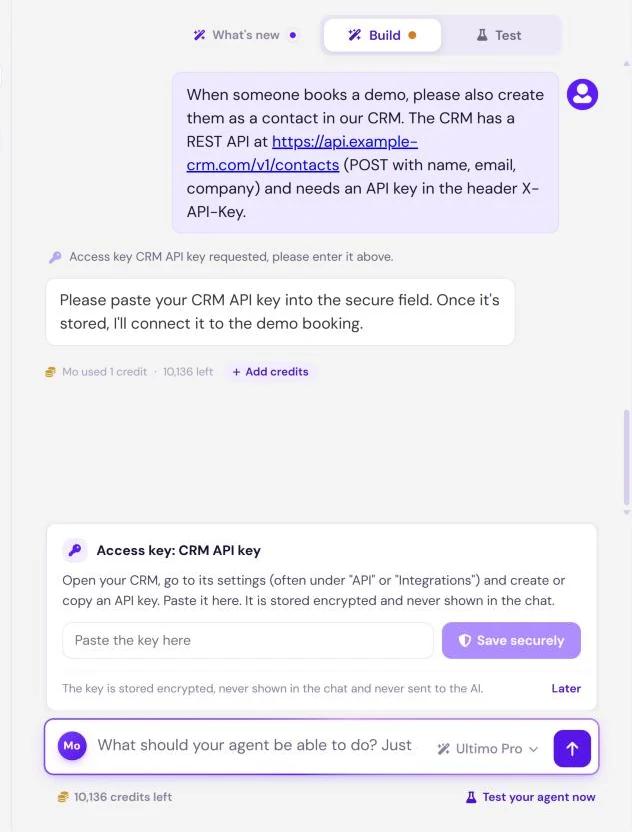
When Mo needs something from you, a card appears right above the input. A short note in the conversation tells you what is open and, later, how it ended.
- Questions (Mo needs your answer). Up to four questions with answer options, sometimes several at once. You can always write your own answer in the field Or your own answer…. Click Send answers, or Cancel to close the card without starting Mo.
- Access key (Access key: name of the key). Mo explains which key it needs and where to find it, sometimes with Open instructions. Paste the key into the field Paste the key here and click Save securely, or choose Later.
- App connection (Connect and the app's name). The button opens the Apps page in a new tab. Connect the app there, come back and click Done, it is connected, or choose Later.
- Platform change (Please confirm: and what will change). The card lists the exact values. Click Execute to apply them or Cancel. Nothing changes before your click, and exactly these values are applied.
What stays in the portal
Some actions are deliberately not available through Mo. When you ask, Mo tells you where to do them:
| Action | Where you do it |
|---|---|
| Delete an agent | Manage agents |
| Delete a workspace | Workspaces |
| Delete your account | Account settings |
| Remove a team member | Team members |
| Delete a lead | Activity › Leads |
| Delete a stored API key | AI Studio › Your agent › Apps › API credentials (see Apps) |
| Join or leave a live chat, write to visitors | Live Chat › Live |
While Mo works
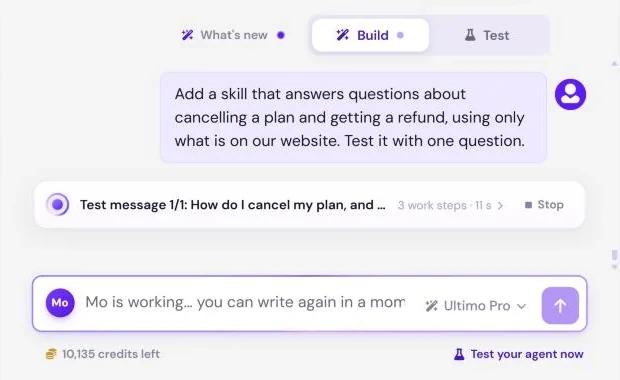
- The input is locked until Mo is done: Mo is working… you can write again in a moment.
- A status line under the last message shows what Mo is doing right now, for example Testing the building block…, plus the number of work steps so far and the elapsed time. Click it to see every step. Stop ends the current run.
- You can leave the page. Mo keeps working in the background. When you come back to AI Studio, it opens the conversation Mo is working in.
- One conversation at a time. Mo works in one conversation per agent. If you open another one meanwhile, a note says Mo is working in another conversation. with Open it.
After a run
- Mo's summary in plain words: what your agent can do now, what Mo tested, what you could try in Test, and what is still open.
- The work steps are folded into one line such as 12 work steps · 12 done. Steps with a note are counted separately. Click the line to see every step.
- The usage line shows what the run cost, for example Mo used 6 credits · 494 left, with Add credits.
- The Your agent panel marks the changed rows, and under the input Test your agent now takes you to Test.
How Mo tests
Mo tests before it reports something as done, and keeps the tests lean:
Every new or changed building block
Mo runs each new or changed building block with a test input and reads the real result. Calls that only read data run for real. Actions with side effects in other systems are simulated unless you agree to a real test. A designed e-mail is only rendered, and Mo can offer to send a test e-mail to your own login address.
A short test conversation
Then Mo chats with your agent like a customer: exactly one test message for a new or changed rule, one or two for a skill. Mo checks that the right skill and building blocks were used, the facts are correct, your rules were followed and the automatic check passed.
At most one retest round
If something is wrong, Mo fixes it and tests once more with the same messages. If it still fails, Mo does not keep testing but tells you plainly what is still open.
When your plan is full
Each plan allows a number of skills and behavior rules per agent:
| Plan | Skills | Behavior rules |
|---|---|---|
| Free | 1 | 1 |
| Smart | 3 | 5 |
| Boost | 10 | 15 |
| Ultimo | 30 | 50 |
- Lead Generation and the skills you chose in the Wix onboarding are marked Included and do not count.
- Every behavior rule counts, also the ones that are switched off.
- Only adding is blocked. Changing, switching off and deleting always work, also when an agent has more than its plan allows.
Mo checks your plan before it builds a new skill or rule. When the plan is full, Mo does not build it, tells you so and the upgrade dialog opens. Mo may offer to change an existing skill or rule instead.
Credits for Mo
Mo uses the AI credits its work really costs: a quick question a few, building a skill more. The cost is rounded up per run. On the Pro and Max levels, Mo's work is charged at half its cost. On the Free plan, Mo works on Ultimo Core. Plans and top-ups are explained in AI credits.