Ready-made skills
Ready-made skills are tested templates for the apps you use. Pick an app, click Add, and your agent can show free times, book a table, track an order or sell with a payment link straight away, without building anything.
Each template is a complete skill whose procedure, rules and app actions have been tested. You add it with one click, and you can still adjust it later by asking Mo. There are 24 templates for six apps: Wix, Calendly, Cal.com, Stripe, HubSpot and Mailchimp.
Open the library
There are three ways in:
- Templates on the Skills tab opens the library with all apps.
- On the Apps tab, a connected app with templates opens its own window, with a line such as 3 of 10 skills active.
- The suggestion card on the Skills tab, for example Wix is connected, offers Add when the app has one template you have not added, or Show when it has several.
You can also ask Mo for a capability in your own words. When a template covers it, Mo adds the template instead of building something new.
All apps
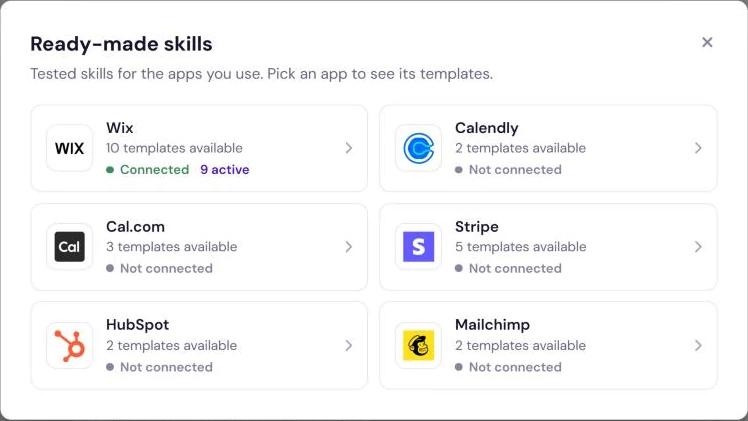
The library first shows one tile per app with its logo, the number of templates (10 templates available), its connection state (Connected or Not connected) and, once you use some, how many are active (2 active). Click a tile to open the app.
An app's window
- All apps at the top takes you back to the tiles (not shown when you came from the Apps tab).
- Next to the app's name you see Connected, or a link such as Connect Calendly, which opens the Apps page in a new browser tab. While the app is not connected, the window says, for example, Connect Calendly to add these templates. and the cards are greyed out.
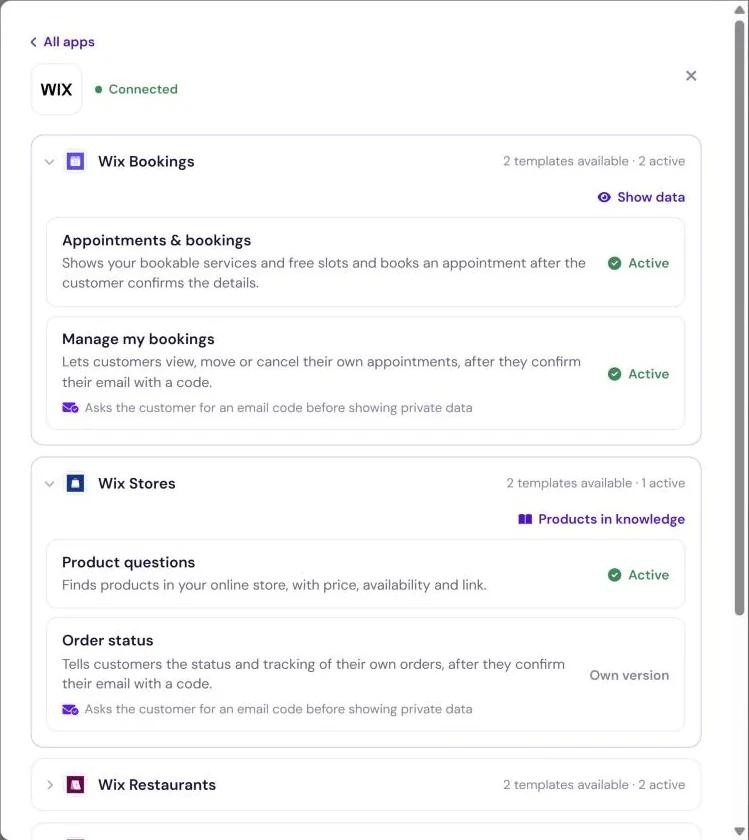
- Wix templates are grouped by Wix app: Wix Bookings, Wix Stores, Wix Restaurants, Wix Events, Wix Pricing Plans, Wix CRM and Wix Blog. Each group shows how many templates it has and how many are active, and folds open to its cards.
- In a connected Wix group, Show data loads a live preview of what your agent reads from that Wix app: services, events, plans, the menu, blog posts or contacts. Nothing is stored. Wix Stores links to Products in knowledge instead, and Manage Wix knowledge at the bottom opens your Wix knowledge in the Knowledge Base.
What a template card shows
Each card has the template's name and a short description. Templates that show a customer's own data carry the note Asks the customer for an email code before showing private data. On the right, the card shows its state:
| State | Meaning |
|---|---|
| Add | The app is connected and the template is not in your skills yet. |
| Active | The template is one of your skills. |
| Update | You use the template and a newer version is available. See Template updates. |
| Own version | Mo reworked this skill to your wishes; it is your own version now. See Change a template. |
| No button, card greyed out | The app is not connected yet. |
Add a template
Open the app in the library
Click Templates on the Skills tab and pick the app, or click the connected app on the Apps tab.
Click Add
The skill is added at once; this does not go through Mo. The library closes, the Skills tab opens and the new skill is expanded and marked new. Its name carries the app, for example Order status (Wix Stores); in the list the app's logo stands in for the part in brackets.
Try it
Open the Test tab and write one of the typical customer requests shown in the skill. If you want it to behave differently, ask Mo.
All 24 templates
The column E-mail code marks templates that show or change a customer's own data. Before they do, the customer confirms their e-mail address with a one-time code (see The e-mail verification gate).
Wix (10)
| Wix app | Template | What it does | E-mail code |
|---|---|---|---|
| Wix Bookings | Appointments & bookings | Shows your bookable services and free slots and books an appointment after the customer confirms the details. See Book directly in the chat. | No |
| Wix Bookings | Manage my bookings | Lets customers view, move or cancel their own appointments. | Yes |
| Wix Stores | Product questions | Finds products in your online store, with price, availability and link. | No |
| Wix Stores | Order status | Tells customers the status and tracking of their own orders. | Yes |
| Wix Restaurants | Menu | Answers questions about your menu: sections, dishes, prices and what is available. | No |
| Wix Restaurants | Table reservations | Checks free tables for the date and party size and books a table after the guest confirms the details. | No |
| Wix Events | Upcoming events | Shows your upcoming events with date, place and ticket prices and links to the event page for tickets. | No |
| Wix Pricing Plans | Pricing plans | Explains your membership and pricing plans with price, billing cycle and what each includes. | No |
| Wix CRM | Capture leads | Saves interested visitors as contacts in your Wix CRM and as a new lead in your inbox, after they confirm their details. | No |
| Wix Blog | Answers from your blog | Answers questions with your blog posts and links to the matching article. | No |
Calendly (2) and Cal.com (3)
| App | Template | What it does | E-mail code |
|---|---|---|---|
| Calendly | Appointment link | Gives customers a personal Calendly link to book a meeting with you. The booking itself happens on Calendly's page. | No |
| Calendly | Recommend the right meeting | Asks what the customer needs, recommends the matching Calendly meeting type and gives a personal booking link. | No |
| Cal.com | Book meetings in chat | Shows free times of your Cal.com meeting types and books the slot the customer picks, after they confirm. | No |
| Cal.com | Show free times | Shows the free times of your Cal.com meeting types and gives the public booking link. | No |
| Cal.com | Move or cancel bookings | Lets customers find their own Cal.com bookings and move or cancel them. | Yes |
Stripe (5)
| Template | What it does | E-mail code |
|---|---|---|
| Sell with payment links | Shows your Stripe products and prices and gives the customer a secure payment link for the one they choose. | No |
| Invoices | Shows customers their own Stripe invoices with status, amount and PDF. | Yes |
| Subscription status | Tells customers whether their own subscription is active, its plan and next billing date. | Yes |
| Cancel a subscription | Lets customers cancel their own subscription at the end of the period, after they say yes. | Yes |
| Billing portal | Gives customers a secure Stripe link to manage their own billing, payment method and invoices. | Yes |
HubSpot (2) and Mailchimp (2)
| App | Template | What it does | E-mail code |
|---|---|---|---|
| HubSpot | Capture leads | Saves interested visitors as contacts in HubSpot and as a new lead in your inbox, after they confirm their details. | No |
| HubSpot | Recognize existing customers | Recognizes existing customers in HubSpot by their e-mail and tells them the details on file. | Yes |
| Mailchimp | Newsletter signup | Signs visitors up for your Mailchimp newsletter; Mailchimp then asks them to confirm by e-mail. | No |
| Mailchimp | Unlock content after signup | Signs visitors up for your newsletter and then shares your members-only content or link with them. | No |
Template settings
Some templates have settings. There is no settings form: tell Mo what you want, for example with Edit on the skill, and Mo sets it. The template stays tested.
| Template | What you can set |
|---|---|
| Appointments & bookings (Wix) | Whether the agent books directly in the chat, and which services it offers (all by default). |
| Appointment link (Calendly), Book meetings in chat, Show free times (Cal.com) | A meeting type to use by default. |
| Newsletter signup (Mailchimp) | The audience to subscribe people to, and a tag for new subscribers. |
| Unlock content after signup (Mailchimp) | The content or link shared after signup, plus audience and tag. |
| Manage my bookings, Order status (Wix), Move or cancel bookings (Cal.com), and the four Stripe templates for existing customers | A contact the agent names for questions it cannot answer, such as an e-mail address. |
Book directly in the chat (Wix bookings)
Appointments & bookings has the setting Book directly in the chat:
- On (the default when you add the template): after the customer confirms the details, the agent books the appointment in the chat, so it lands directly in your Wix calendar. For paid services it can hand over a payment link.
- Off: the agent shows free slots and gives the booking link for the chosen day. The customer completes the booking on your site.
If your agent already had the Wix booking skill before the current AI Studio, the setting starts off, so your agent keeps working exactly as before. Ask Mo to switch it on, for example: Let customers book directly in the chat.
Change a template
You change a ready-made skill like any other skill: open it, click Edit and tell Mo what should change. What happens depends on the size of the change:
- Small changes keep the template. The name, the description, the example requests, an extra rule or one of its settings. The skill stays tested and keeps receiving template updates.
- Bigger changes make it your own version. If your wish needs a different procedure or different building blocks, Mo reworks the skill. The library card then shows Own version, and the skill no longer receives template updates.
While your own version exists, the library does not offer the original template again. Delete your version first if you want the original back.
Template updates
When a template is improved, your skill shows update available on the Skills tab and its card in the library shows Update. Click Update to get the new version. The tested procedure, rules and building blocks are replaced; your name, your description, your example requests, your extra rules and your settings stay.