Profile & answer settings
The Profile tab holds the texts that frame every conversation, your Business Context and the welcome messages of your chat window, and the settings that decide how your agent answers.
You can edit everything here yourself, or ask Mo to do it. When Mo changes your Business Context or the welcome message, the Profile tab shows it as changed. While you are editing, a change by Mo does not overwrite your unsaved text.
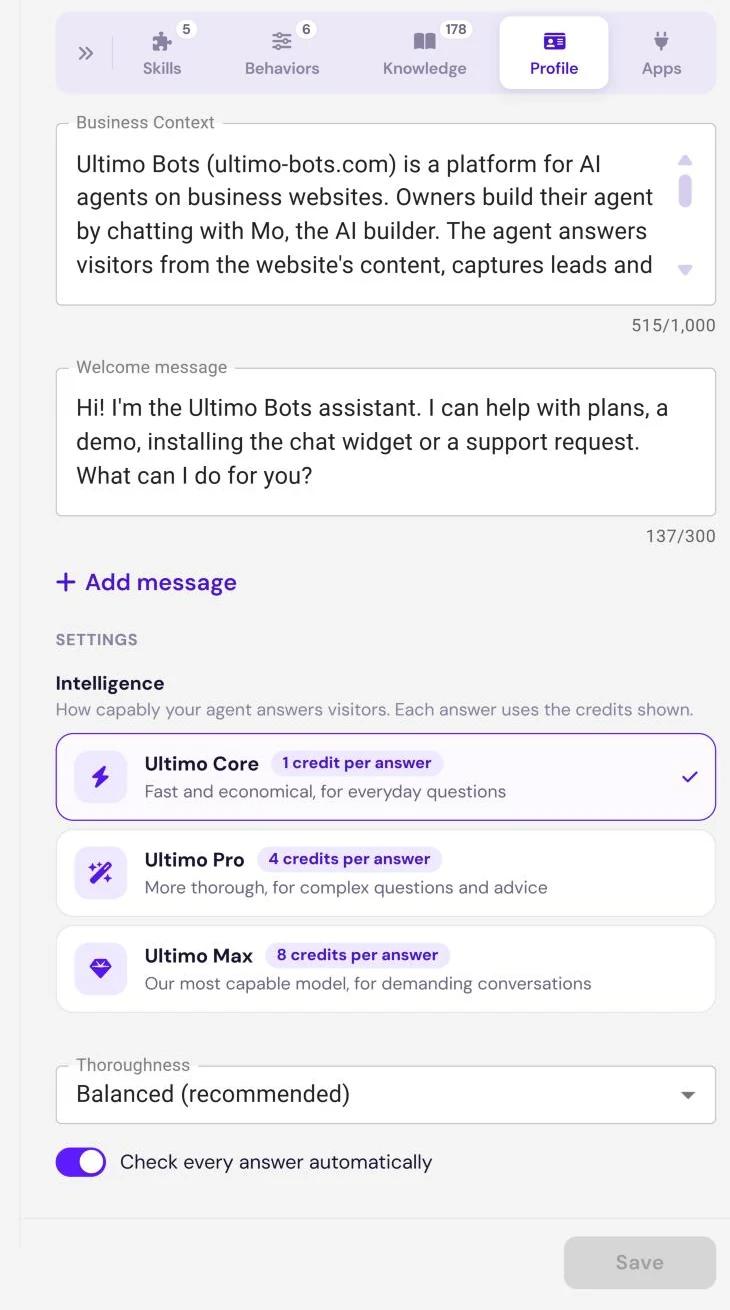
Business Context
The Business Context holds the verified core facts about your business that your agent may state: what you offer, where you are, opening hours, how to reach you. It goes into every answer. It can be up to 1,000 characters, and a counter under the field shows how many you have used. Put further details into your knowledge instead.
It is the same text as on Knowledge Base › Business Context, so a change in one place shows up in the other.
Welcome message
The Welcome message is what visitors see first in your chat window. The test chat in Test starts with it too.
- Up to 5 messages of up to 300 characters each. Click Add message for another one, and the trash icon to remove one.
- Once your agent has a chat window, it needs at least one welcome message. If you clear them all, the field asks you to Add at least one message.
- Without a chat window, the tab says Set up your chat window first, then you can change the greeting here. See Deploy › Design.
Saving your texts
Business Context and welcome messages are saved together with Save in the bar under the tab, which stays in view while you scroll. Save stays inactive until you change something, and while a text is too long.
- With unsaved changes, Discard Changes appears next to Save and restores the saved texts.
- After saving, the bar shows All changes saved.
- If you leave the page with unsaved texts, the portal asks first whether to save or discard them.
Settings
The settings under Settings are saved the moment you pick them. They need no Save click.
Intelligence
Intelligence decides how capably your agent answers visitors. Each answer uses the credits shown next to the level, in live conversations and in your test chats alike.
| Level | Credits per answer | Best for |
|---|---|---|
| Ultimo Core | 1 | Fast and economical, for everyday questions |
| Ultimo Pro | 4 | More thorough, for complex questions and advice |
| Ultimo Max | 8 | The most capable level, for demanding conversations |
- Pro and Max need a paid plan. On the Free plan they are marked Paid plan, and a click takes you to your plan options.
- A dearer level asks first. A dialog (More credits per answer) tells you what each answer will cost from then on. Confirm with Switch to and the level's name. A cheaper level applies at once.
- Your choice alone. Mo does not change the Intelligence level.
What credits are, how many each plan includes and what happens when they run out is explained in AI credits.
Thoroughness
Thoroughness sets how much time your agent takes to think before it answers: Fast, Balanced (recommended) or Thorough. Balanced is the default. Fast answers quickest, Thorough takes more time on harder questions. The credits per answer depend only on the Intelligence level.
Check every answer automatically
With Check every answer automatically switched on, every answer is checked afterwards against your Business Context, your behavior rules, the knowledge the agent looked up and the results of its building blocks. It is on by default and costs no extra credits. In Test, the result appears as a short verdict under each answer. See Test your agent.