Account & Billing
Account settings
Your account settings cover the personal details tied to your own login: your name, the language you see the dashboard in, and the timezone and date format used to display times. This is also where you change your password and sign out.
Open these settings from the account menu in the top-right corner of the dashboard. Click the round avatar with your initial, then choose Account settings. The same menu has shortcuts to Billing and Logout.
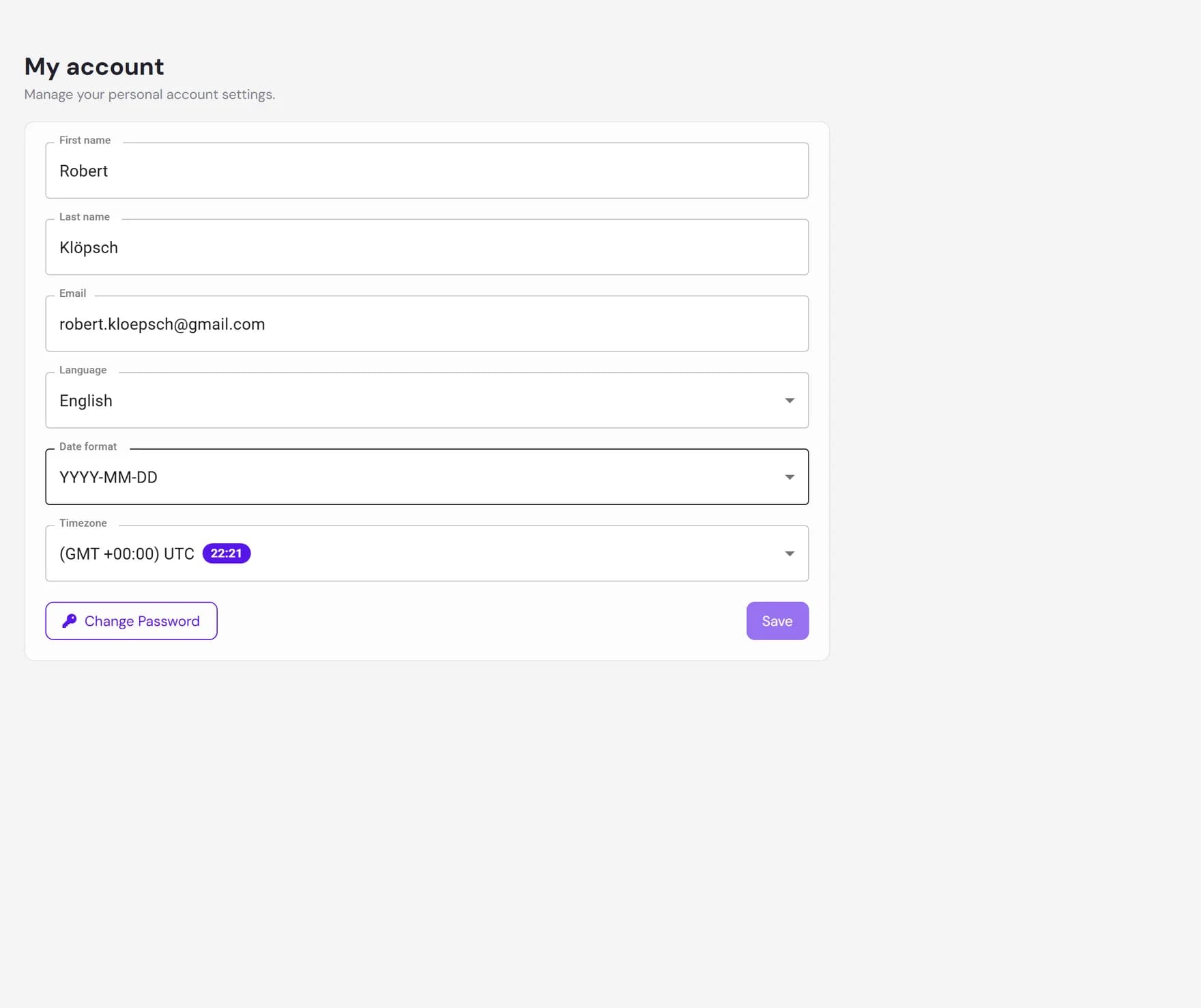
Your personal details
The page shows a single form with the fields below. Edit any of them and the Save button becomes active. Nothing is stored until you save.
| Field | What it does |
|---|---|
| First name | Your given name. It is used to greet you in the account menu and is the only required field, so it cannot be left empty. |
| Last name | Your family name. Optional. |
| The email address for your login. It must be a valid address, and it must not already belong to another account. Changing it takes effect when you save, and the new address is what you use to sign in next time. | |
| Language | The language of the dashboard interface. The dashboard is available in 8 languages: English, German, French, Spanish, Italian, Portuguese, Dutch, and Polish. Pick one from the list, and the interface switches as soon as you save. The non-English translations are AI-assisted and still being refined, so you may notice the occasional rough edge. |
| Date format | How dates are written across the dashboard. Choose YYYY-MM-DD, DD-MM-YYYY, or MM-DD-YYYY. |
| Timezone | The timezone used to display times in the dashboard. Pick from the list of regions; each option shows the current local time next to it. |
When you are happy with your changes, click Save. If you change your mind before saving, click Discard changes to put every field back to how it was. The dashboard reminds you when you have unsaved edits so you do not lose them by navigating away.
How language, timezone, and date format are used
Your timezone and date format control how times and dates are shown to you everywhere in the dashboard. Conversation timestamps, lead capture times, charts, reports, and the live inbox all follow these two settings, so once you set them, the whole dashboard reads in your local time and your preferred date style.
- Timezone shifts displayed times to your region. For example, a conversation that arrived at 14:00 UTC appears at your local equivalent.
- Date format changes only how the date is written, not the date itself.
- Language changes the wording of the dashboard interface.
Change your password
Click Change password on the account settings page to open a small dialog. Updating your password takes three fields:
Current password
Enter the password you use today. It is checked first, so an incorrect current password stops the change before anything is updated.
New password
Your new password must be at least 8 characters and include at least one lowercase letter and one uppercase letter. It also has to be different from your current password.
Confirm new password
Re-type the new password. The two entries must match. You can use the eye icon in each field to reveal what you have typed.
Click Change password in the dialog to apply it. On success you see a confirmation and the dialog closes on its own. If the change cannot be applied, the dialog shows the reason (for example, the current password was wrong or the requirements were not met) so you can correct it and try again.
Sign out
To sign out, open the account menu in the top-right corner and click Logout. This ends your session in the current browser and returns you to the sign-in screen. If you have unsaved changes on the page you are on, the dashboard asks what to do with them before it signs you out.
Personal vs workspace and agent settings
It is easy to mix these up, so here is the difference. Account settings, this page, are about you. Workspace and agent settings live in other parts of the dashboard and can affect your whole team or what your visitors experience.
| Where | What it controls |
|---|---|
| Account settings (this page) | Your name, login email, interface language, timezone, date format, and password. Personal to you. |
| Workspace | The shared space your team and agents live in, including teammates and their roles. Affects everyone in the workspace. |
| Agent | What a specific agent knows and how it behaves, looks, and where it is published. Affects what your visitors see. |
Where to go next
Manage the rest of your account and workspace from here: