AI Studio
Apps
Apps connect your everyday tools to Ultimo Bots so your agent can do more than answer questions. Once an app is connected, your skills can use it to take real actions, such as handing a visitor a booking link, subscribing them to a newsletter, or filing a support ticket.
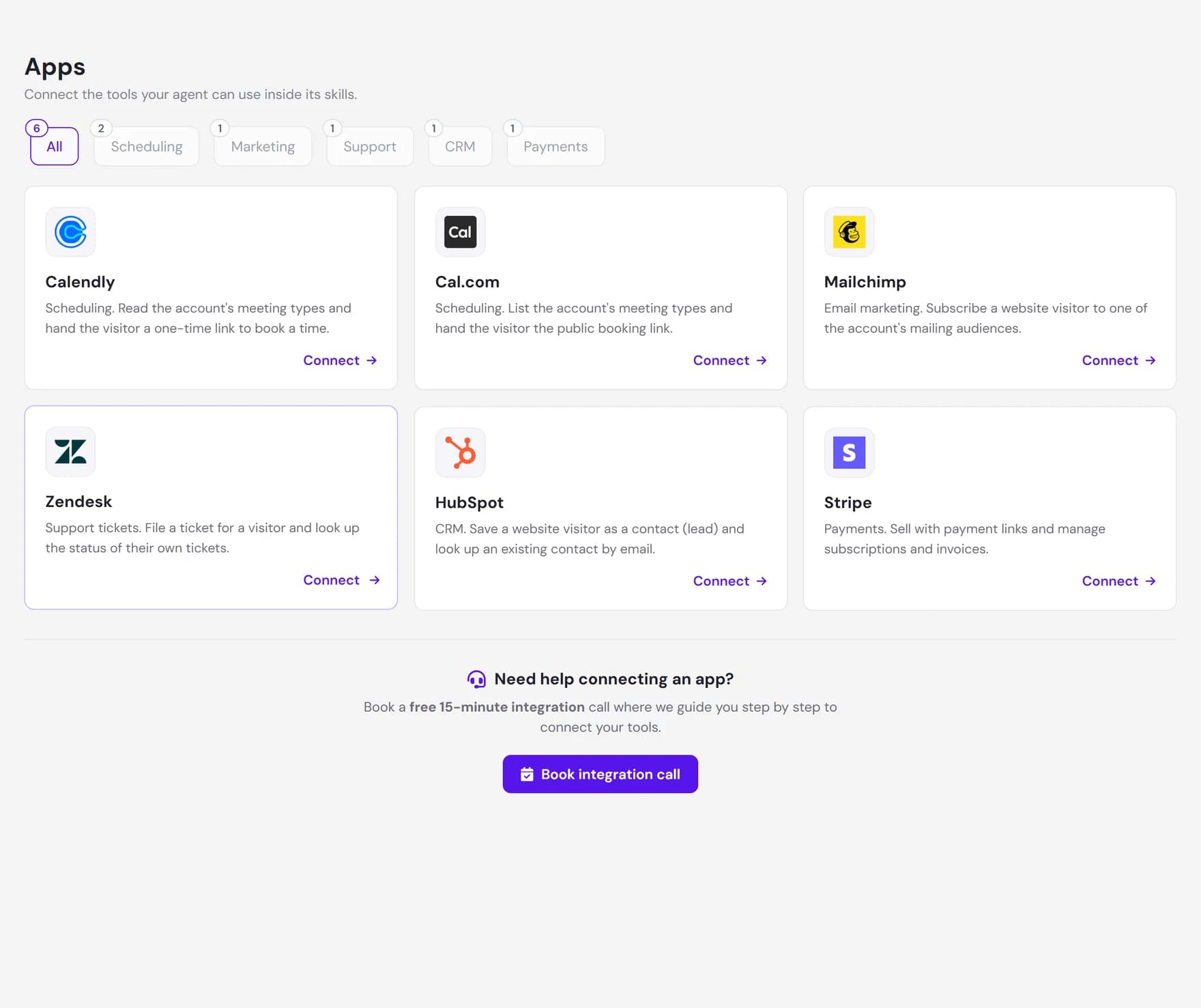
You manage apps on the Apps page in AI Studio. Each card is one app you can connect. Connecting is done once per account, and after that any of your skills can call that app's actions. App connections are shared across your workspace, not configured separately for every skill.
What apps are
Your agent normally answers from the knowledge you give it. Apps add a second ability: taking an action in a tool you already use. Behind the scenes each action is a small, predefined call to that app, so the agent is never guessing at an API. It can only do the specific things the app exposes, for example listing your Calendly meeting types or creating a Stripe payment link, and nothing more.
Actions always run under your connected account. When the agent creates a booking link, it is your Calendly. When it files a ticket, it lands in your Zendesk. Usage of the third-party tool is governed by that provider, not by Ultimo Bots.
Categories and available apps
The Apps page groups apps into categories so you can find the right one quickly. Use the filter chips at the top to switch between All and a single category. The table below lists every app you can connect today and what your agent can do with each one.
| App | Category | What your agent can do with it |
|---|---|---|
| Calendly | Scheduling | List your meeting types and hand the visitor a one-time scheduling link to book a time. Booking happens on Calendly's own page, not inside the chat. |
| Cal.com | Scheduling | List meeting types, show available slots, and book a meeting in chat after collecting the visitor's name and email. It can also share your public booking link, and look up, reschedule, or cancel a booking. |
| Mailchimp | Marketing | Subscribe a visitor's email to one of your audiences. Mailchimp sends a confirmation email (double opt-in), so the visitor must click the link to finish. |
| Zendesk (coming soon) | Support | File a support ticket for the visitor and return a ticket reference, and look up the status of a visitor's own tickets after they verify their email. The card shows as coming soon until it is available on your account. |
| HubSpot | CRM | Save a visitor as a contact (lead) with their email, name, and phone, and look up an existing contact by email to report basic details. |
| Stripe | Payments | Show your products and prices and create a payment link so the visitor can pay. For a verified customer it can also read invoices and subscriptions, change or cancel a plan, and share a billing-portal link. |
Zapier, Make and n8n
The Automation category holds three cards that work differently: Zapier, Make and n8n. There is no OAuth sign-in, because your agent reaches them through your workflow's webhook URL. Clicking Connect on one of these cards explains what the platform can do and hands you straight to the build agent, which asks for the webhook URL and assembles the skill in one conversation.
A skill can send the details it collects in chat to any Zapier Zap, Make scenario or n8n workflow, and with Make or n8n the workflow can even send data back that the agent uses in its answer. The full guide, including the differences between the three platforms, lives on its own page: Zapier, Make & n8n.
If your site is on Wix
If you installed Ultimo Bots from the Wix App Market, Wix itself shows up as a built-in app on the same Apps page. You do not connect it with OAuth and there is no separate sign-in: it is linked through your Wix install, so it is ready as soon as your agent is on your Wix site. Its card opens a hub where you can review what your agent can reach.
The Wix app exposes more than the OAuth apps above, all from the Wix site your agent is installed on. At a high level, your agent can:
- Search your Wix Stores catalog by what the visitor is looking for, with prices and stock status, and check whether an item is in stock.
- Show your bookable services and classes with their price and duration, present open appointment times, and book an appointment in the chat.
- List your upcoming events with their ticket types and prices, and show your public pricing and membership plans.
- For restaurant sites, read your menu sections and dishes with prices, list locations and open tables, and book a table.
- Save a visitor as a contact (lead) in your Wix CRM.
- Answer from your site's business info, such as opening hours, address, and phone, and from your blog posts.
Some Wix actions read a specific person's private records, such as looking up their orders and shipping status, or listing and changing their own bookings. Those are protected by the same email-verification gate described below, and each lookup is locked to the visitor's own verified email, so a visitor can only ever see their own data.
If your store is on Shopify
Shopify works the same built-in way. When you install Ultimo Bots from the Shopify App Store, the Shopify app is linked through that install, with no separate sign-in. Your store's own data, such as products, policies, pages, shipping and promotions, feeds the agent's knowledge, and skills can use Shopify actions, for example creating a discount or gift card.
How to connect an app
Connecting uses a secure sign-in (OAuth) with the app, so you log in on the provider's own page and Ultimo Bots never sees your password.
Open the app
On the Apps page, optionally pick a category, then click the app you want. A panel opens with its connect and manage options.
Click Connect
Click Connect and sign in to the app in the window that opens, then approve the access it asks for. Some apps need one detail first: Zendesk, for example, asks for your Zendesk subdomain (the part before
.zendesk.com) before sign-in.Confirm it is connected
After you approve, you return to the Apps page and the card shows a Connected badge. The button on that card changes to Manage, where you can review the connection or disconnect it later.
How a skill uses a connected app
A connected app becomes available as an App action tool inside the Skill builder. You add the action to a skill, and from then on the agent decides when to call it, in the same conversation where it answers normal questions. It is not a fixed script: the agent gathers what the action needs (for example a meeting type, or the visitor's email), calls the app, and then explains the result in its own words.
Some actions depend on another action running first. To create a Stripe payment link, for instance, the agent first lists your prices to get the right price, then creates the link. The builder shows these dependencies for you, and the agent follows them automatically.
The email-verification gate
Some actions touch a specific person's private data, such as reading invoices, listing or cancelling bookings, changing a subscription, or looking up a visitor's own support tickets. These are protected by a built-in verification gate.
Before the agent runs one of these actions, it asks the visitor to verify their email:
- The visitor gives an email address.
- Ultimo Bots emails a one-time, six-digit code to that address.
- The visitor enters the code back in the chat to prove the address is theirs.
Only then does the action run, and it is locked to the verified email, so a visitor can only ever see or change their own data, never someone else's. Verification lasts for the rest of that conversation (about 30 minutes). You do not configure any of this: it turns on automatically for the actions that need it, and those actions are marked in the skill builder.
Need help connecting?
If you would rather not set this up alone, you can book a free 15-minute integration call. We walk you through connecting your tools and wiring them into a skill, step by step. The same Book integration call option is available right on the Apps page.