Knowledge Base
Notion
Connect your Notion workspace and import the pages and databases you choose. Each one becomes part of your knowledge base, so your AI agent can answer from the same notes, docs, and tables your team already keeps in Notion.
Notion is one of three cloud knowledge connectors, alongside Google Drive and OneDrive. You connect your workspace once, pick the content to share, and the imported pages are searched at chat time exactly like website pages, documents, and FAQs. You manage everything from the Notion tab on the Knowledge page of your dashboard.
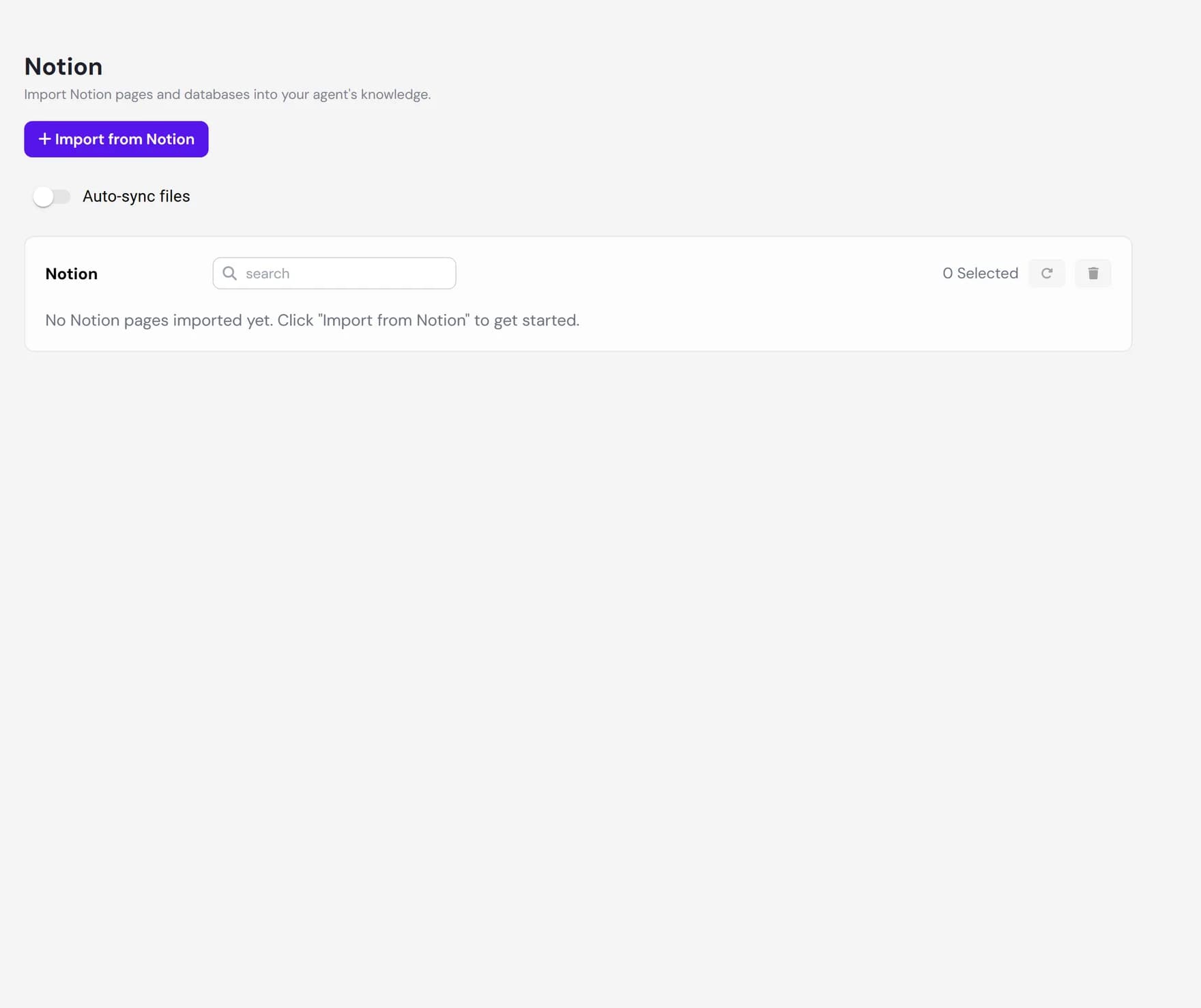
Connect your Notion workspace
On the Notion tab, click Import from Notion. If you have not connected a workspace yet, you are prompted to Connect Notion. This opens Notion in a secure sign-in window where you log in and choose which pages and databases to share with the integration.
Notion controls access through sharing, not through a broad permission scope. Whatever you pick on that screen is exactly what Ultimo Bots can later read, and nothing else. You can connect more than one workspace: each appears in a workspace dropdown in the importer, and connections are shared across your team, so a workspace one teammate connects is available to the others.
Choose pages and databases to import
Notion does not provide a folder tree to browse, so the importer is a search box. Start typing and your shared pages and databases appear as a single checkbox list. Two kinds of items can show up:
- Pages. A single Notion page becomes one knowledge entry.
- Databases. A database is a collection of rows, where each row is its own page. Databases are marked with a Database badge. Selecting one imports every row inside it as a separate page.
Tick the items you want, then click Import Selected. If you do not see something you expected, use Select pages in Notion to reopen the Notion sharing screen, share more pages, and refresh the list without leaving the importer.
How pages import as knowledge
Importing runs in the background, so you can close the importer and keep working while it finishes. Each selected page is added to your knowledge base and then read and indexed so your agent can use it. To respect Notion limits, pages are fetched in small batches a few at a time, which means a large selection or a big database takes longer than a handful of pages.
You can watch progress right on the Notion tab. While pages are being read, the tab shows a line such as 3 pages currently importing, and each row carries a status:
| Status | What it means |
|---|---|
| Importing | The page is queued or being read. It cannot be selected or viewed until it finishes. |
| Imported | The page was read successfully and is now part of your knowledge base. Open it to review the extracted text. |
| Failed | The page could not be read this time. Re-sync it, or remove it and import it again. |
Once a page shows as imported, click the view icon on its row to see the exact text your agent received. Imported Notion pages count toward your plan's knowledge limit, the same shared allowance used by website pages, documents, FAQs, Google Drive, and OneDrive. The importer tells you how many slots remain and stops you from going over.
Re-sync when your Notion content changes
Notion edits do not flow into Ultimo Bots automatically the moment you make them. When you update content in Notion, refresh it here so your agent learns the latest version. You have two ways to keep imported pages current:
Find the pages
Use the search box on the Notion tab to narrow the list, then tick the pages you want to refresh, or use Select all.
Re-sync the selected pages
Click the refresh action. Ultimo Bots re-reads each selected page from Notion and updates its stored text. The rows return to the importing state while this runs, then back to imported.
On the Boost and Ultimo plans you can also turn on automatic sync for Notion. When it is on, Ultimo Bots checks your imported content on a schedule (monthly, with a daily option on Ultimo) and refreshes the text of your pages for you. You can also let it add new rows that appear in an imported database and remove rows that were deleted, using the toggles in the sync settings.
Remove pages or disconnect Notion
To stop your agent using a Notion page, select it on the Notion tab and click the remove action . The page is deleted from your knowledge base and stops appearing in answers. This only removes it from Ultimo Bots. Your original page in Notion is never changed.
To cut the link entirely, disconnect the workspace from the data connections area of your dashboard, where Notion sits next to Google Drive and OneDrive. Disconnecting stops future imports and syncs from that workspace. Because Notion access is governed by sharing, you can also revoke access from inside Notion itself at any time.
Good to know and limits
- Sharing controls access. Only pages and databases you shared with the integration can be imported. To add more later, share them in Notion, then use Select pages in Notion to refresh the list.
- Imports process in the background. Large workspaces and big databases take a little time to read, and pages are fetched in small batches. Progress is shown live on the Notion tab.
- Sync is on a schedule, not live. Changes you make in Notion reach your agent when you re-sync manually or on the next automatic sync run, not the instant you edit.
- Databases import up to 500 rows. Very large databases are read up to the first 500 rows.
- Nested content has limits. A selected database imports its rows, and the content inside each row is read, but databases nested inside a row are not expanded on their own.
Next steps
Keep building your agent's knowledge from your other sources: