Knowledge Base
Documents
Documents are the files your business already has: PDFs of brochures, a Word handbook, a price list, an exported FAQ. Upload them and your agent reads the text inside, so it can answer from the same material your team relies on.
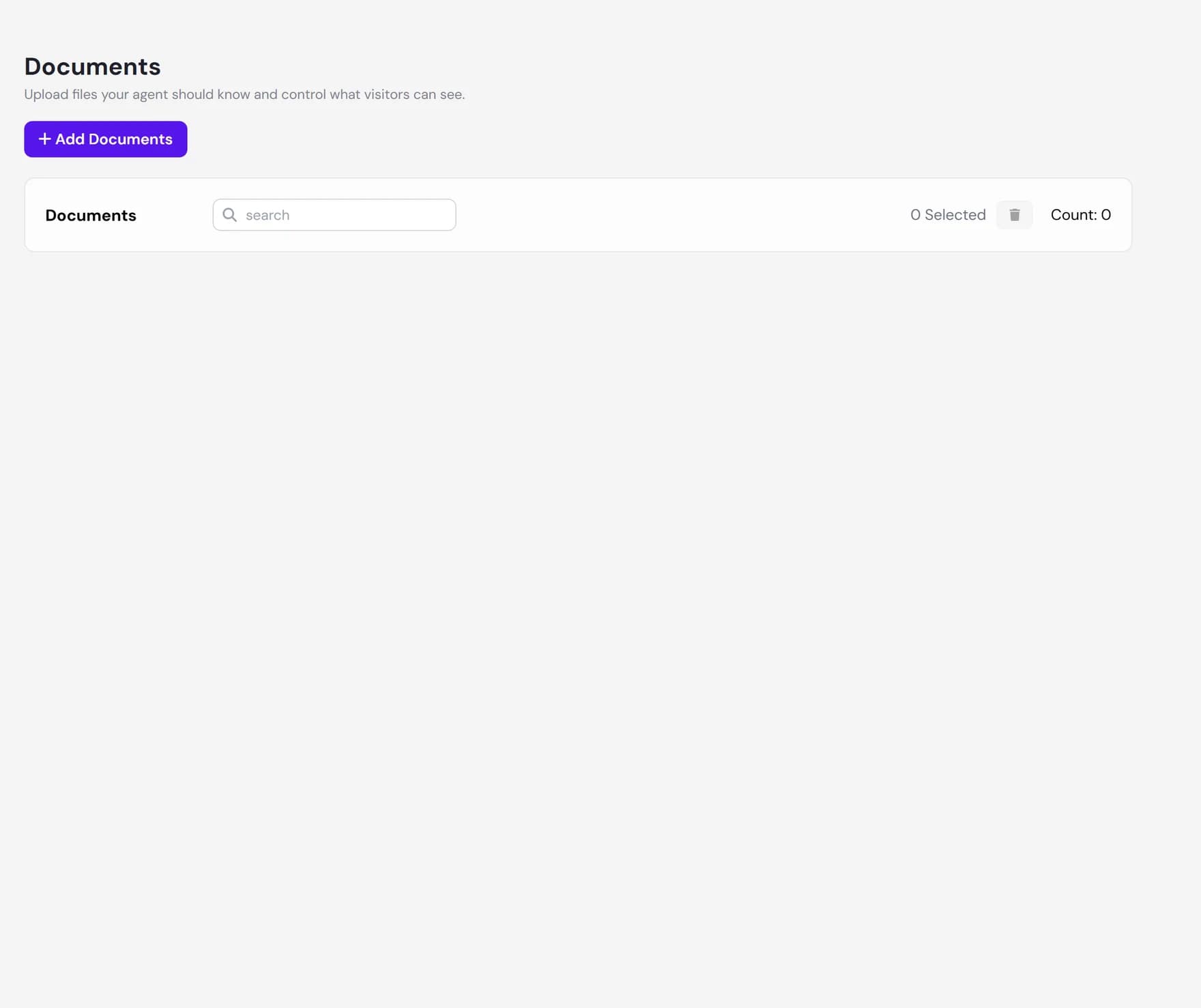
You manage documents from the Knowledge Base of any agent in the dashboard. Open the Documents tab to see the files this agent already knows, upload new ones, and control what visitors are allowed to download.
Supported file types and limits
The upload area accepts seven document types. Pick whichever format your content already lives in. There is no benefit to converting a file first.
| Setting | What is allowed |
|---|---|
| File types | .pdf, .doc, .docx, .rtf, .txt, .csv, and .md |
| Maximum per file | 20 MB |
| Maximum per upload | 100 MB in total, and up to 10 files at once |
| How files count | Each document uses one knowledge slot, shared with website links, FAQs, and your other sources |
If you select files that do not fit, the upload area sorts them into clear groups so you can see exactly why each one was skipped: an unsupported type, a single file over 20 MB, or files that would push the batch over the 100 MB total. Supported files in the same selection still upload normally.
.xlsx) are not supported. Save the sheet as .csv and upload that instead. Web pages (.html) do not belong here either. Add the page with Website Links, which strips the menu, header, footer, forms, and buttons out first and gives your agent far cleaner text than an HTML file would. For a page that is not public, save it as a PDF and upload that.How to upload documents
On the Documents tab, click Add Documents to open the upload window. From there you have two ways to add files.
Drag and drop, or browse
Drag files straight onto the dashed upload area, or click Select Files to pick them from your computer. You can add several documents in one go.
Watch each file upload
Every file shows a spinner while it transfers and a green check once it is in. Anything that does not meet the rules above is listed separately with the reason, and you can remove a file from the list before continuing.
Confirm the upload
Click Upload. The window closes and your new documents appear in the list while the agent reads them. You can keep working in the meantime.
What happens after you upload
Adding documents to your agent is automatic. For each file, Ultimo Bots:
- Reads the text out of the file. It pulls plain text from PDFs, text, CSV, and Markdown files, and paragraphs plus table rows from Word documents, so pricing and spec tables come through too.
- Adds it to the knowledge base. The extracted text is split into smaller passages and indexed so your agent can find the right part when a visitor asks a question.
- Answers from the extracted text. Your agent works from the text it read, not from the file itself. The original is kept on file so it can be offered as a download when you turn on the download link for that document.
Each document moves through a short lifecycle, shown by the icon next to its name in the list:
| Status | What it means |
|---|---|
| Processing | The file is being read and indexed. A spinner shows on the row, and the row is locked until it finishes. |
| Ready | A green check means the document is indexed and your agent can answer from it. |
| Failed | No readable text could be taken from the file. A red mark shows on the row. Check the file and upload it again. |
Share a download link in chat
By default, a document is used only as knowledge: your agent reads it, but visitors cannot get the file. If you want visitors to be able to download the original, for example a brochure or a price sheet, turn on the download link for that document. When it is on, your agent can include a download link for that file in its chat replies, so a visitor can open and save the full document.
- One file at a time. Use the Share download link in chatswitch on a document row to turn the link on or off for just that file.
- All at once. Use the Share download links in chat switch at the top of the list to flip every document together.
Remove a document
To remove a file, select it with its checkbox and click the trash icon, then confirm. You can also select several documents and remove them together. Removing a document deletes it from the knowledge base and from the search index, so your agent stops using it right away.
There is no in-place edit for a document. If a file changes, upload the new version and remove the old one so the agent does not answer from outdated content.
Good to know
Next steps
Documents are one source of knowledge. Round out what your agent knows: